Kimi K2.5, developed by Moonshot AI, represents the latest evolution in their multimodal AI model series. With significant improvements in visual programming capabilities, agent clustering, and document processing, developers are looking to integrate this powerful model into their coding workflows through Cursor IDE. This guide shows you exactly how to configure Kimi K2.5 in Cursor, leveraging its agentic coding capabilities through a streamlined setup process.
Why Kimi K2.5 Works Excellent with Cursor
Kimi K2.5’s architecture is specifically designed for complex, multi-step tasks that align perfectly with Cursor’s agentic coding environment. Here’s why this pairing is particularly effective:
1. Advanced Agentic Interaction Support
Kimi K2.5 is built on Moonshot AI’s latest architecture with enhanced agent clustering capabilities (as announced in their Beta release). This means the model can handle multi-step reasoning tasks, making it well-suited for Cursor’s code completion, refactoring, and debugging workflows where the AI needs to understand context across multiple files.
2. Rich Tool-Calling Ecosystem
The model supports function calling and structured output, essential for Cursor’s IDE integration where the AI needs to interact with your codebase through defined interfaces. Kimi K2.5’s tool-calling capabilities enable it to suggest code changes, run terminal commands, and navigate file structures effectively within Cursor’s environment.
3. Long-Context Understanding
With support for extended context windows, Kimi K2.5 can maintain awareness of larger codebases, making it suitable for enterprise-level projects where understanding relationships between multiple modules is critical. This long-context capability is particularly valuable in Cursor’s workspace where developers often work with dozens of files simultaneously.
4. Visual Programming Capabilities
Kimi K2.5 introduces advanced visual programming features, allowing it to understand and generate code from UI mockups and diagrams. In Cursor, this translates to better support for front-end development workflows where you can describe visual layouts and have the model generate corresponding code.
5. Document Processing Integration
The model’s native support for document understanding (PPT, Excel, PDF as advertised on their platform) makes it valuable for developers working with technical specifications, API documentation, or design documents directly within their coding environment.
6. Cost-Effective Alternative
For developers concerned about API costs, Kimi K2.5through third-party providers can offer competitive pricing compared to mainstream models while maintaining high performance for coding tasks.
What is Cursor?
Cursor is an AI-first code editor built on top of Visual Studio Code, designed specifically for AI-assisted development. Unlike traditional code editors with AI plugins, Cursor integrates AI deeply into every aspect of the coding workflow:
- AI-Native Design: Built from the ground up with AI assistance as a core feature, not an afterthought
- Context-Aware Suggestions: Understands your entire codebase, not just the current file
- Chat-Driven Development: Natural language interface for code generation, refactoring, and debugging
- Custom Model Support: Configure any OpenAI-compatible API endpoint for flexibility
- Privacy Controls: Options to keep sensitive code local or use your own API keys
Cursor’s ability to use custom model endpoints makes it the perfect environment for integrating specialized models like Kimi K2.5 giving developers full control over their AI coding assistant’s capabilities and costs.
How to Use Kimi K2.5 in Cursor: Complete Setup Guide
Prerequisite: Get an API Key
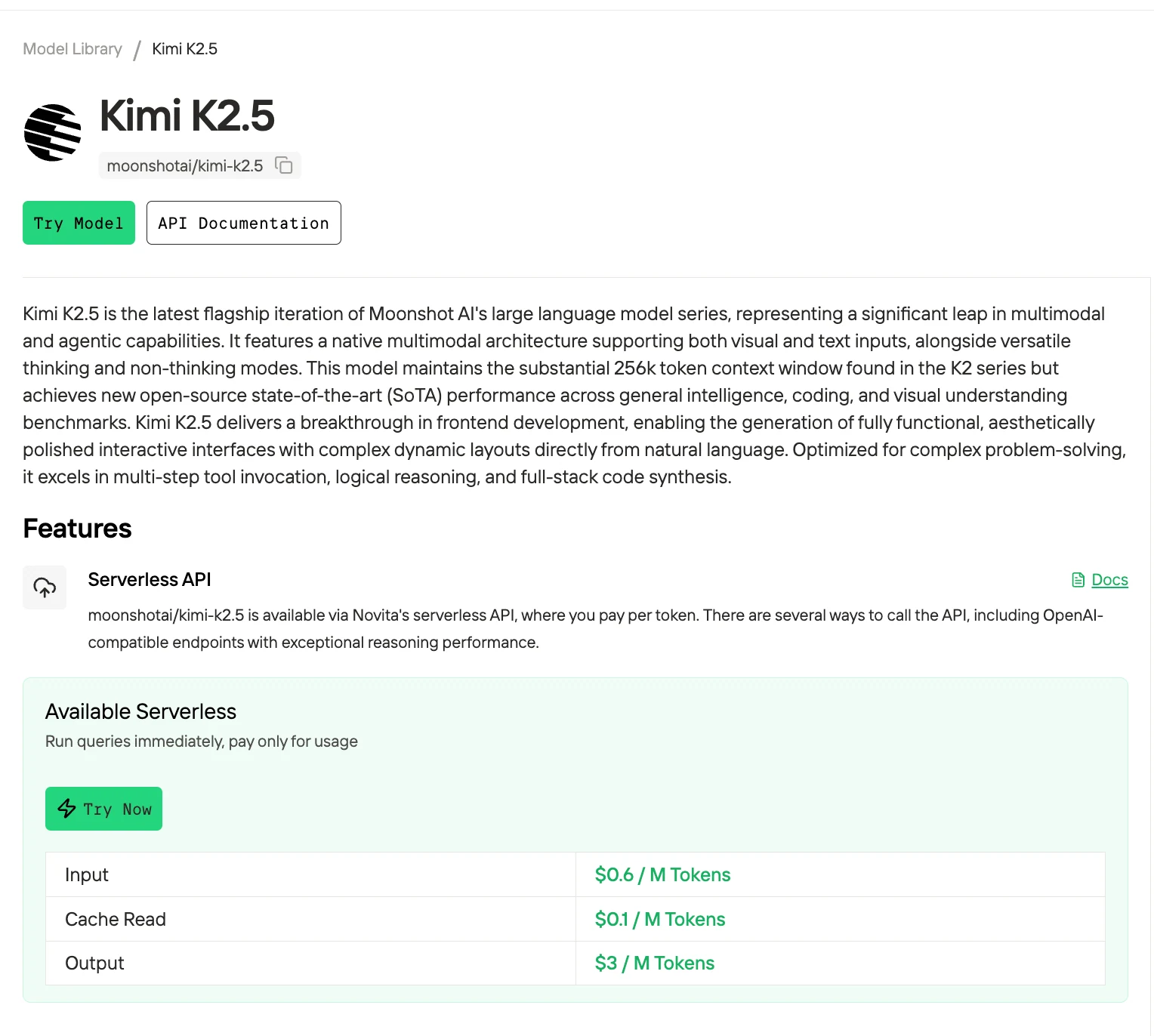
Novita AI provides Kimi K2.5 APIs with a 256K context window, priced at $0.6 per 1M input tokens and $3.0 per 1M output tokens, with cache reads costing $0.1 per 1M tokens—empowering Kimi K2.5 to perform at its highest potential in agentic coding tasks.
Novita AI
Step 1: Create your Account
Sign up for a Novita AI account. Once you’re logged in, you’ll begin by generating an API key, which you’ll use to authenticate requests.
Step 2: Generate your API Key
Navigate to Key Management and select Add New Key. This key serves as your request credential. It will only be displayed once, so make sure to copy it immediately and store it somewhere safe—you’ll need it for the steps that follow.
Step 3: Verify Model Access
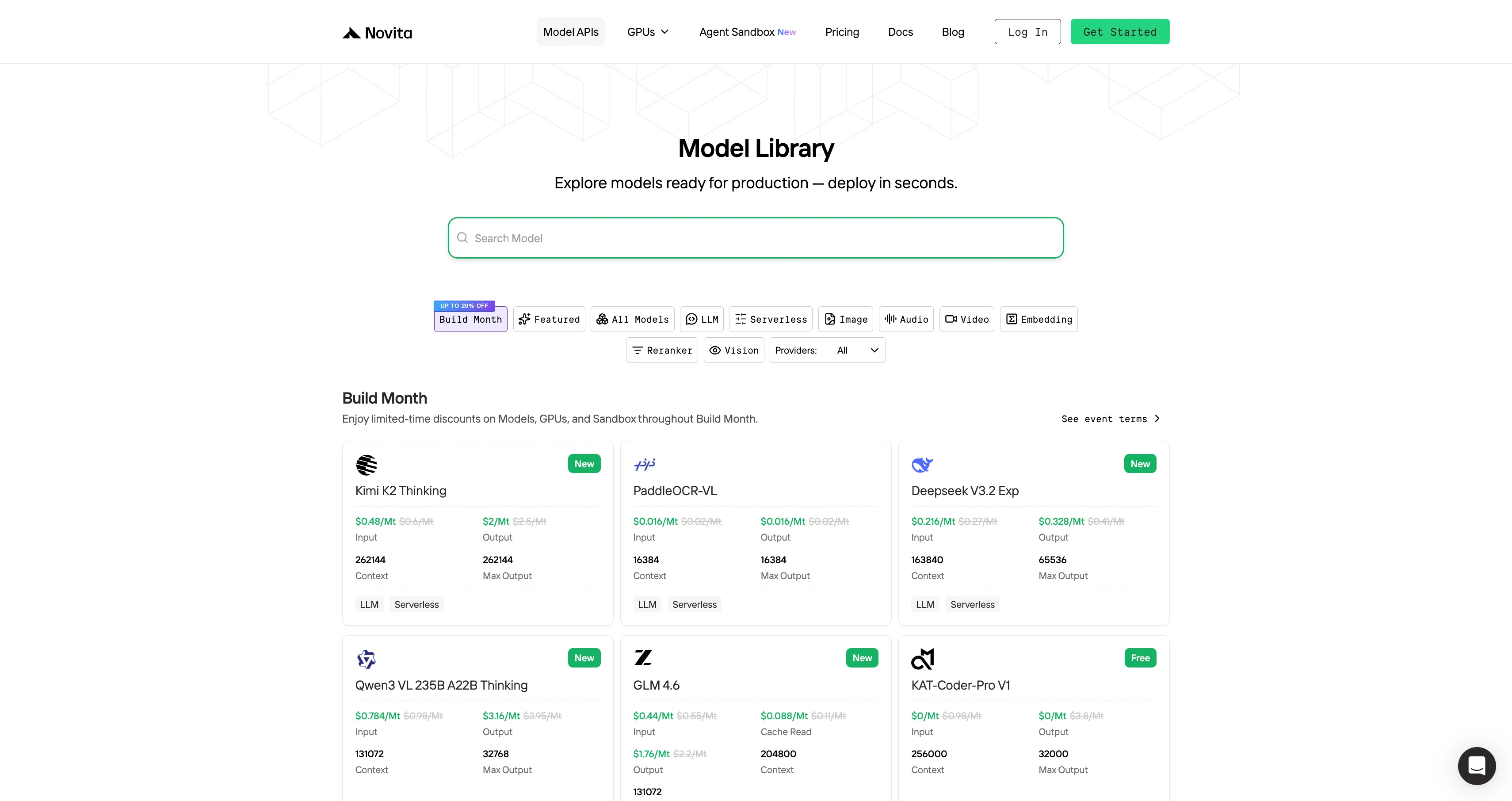
- Select a Model Name: You’ll need to copy the model name you want to use from Novita AI’s Model Library.
- API Endpoint:
https://api.novita.ai/openai - Compatibility: Full OpenAI API standard support
Complete Cursor Installation and Setting Guide
Step 1: Install and Activate Cursor
- Download the newest version of Cursor IDE from cursor.com
- Subscribe to the Pro plan to enable API-based features
- Open the app and finish the initial configuration
Step 2: Access Advanced Model Settings
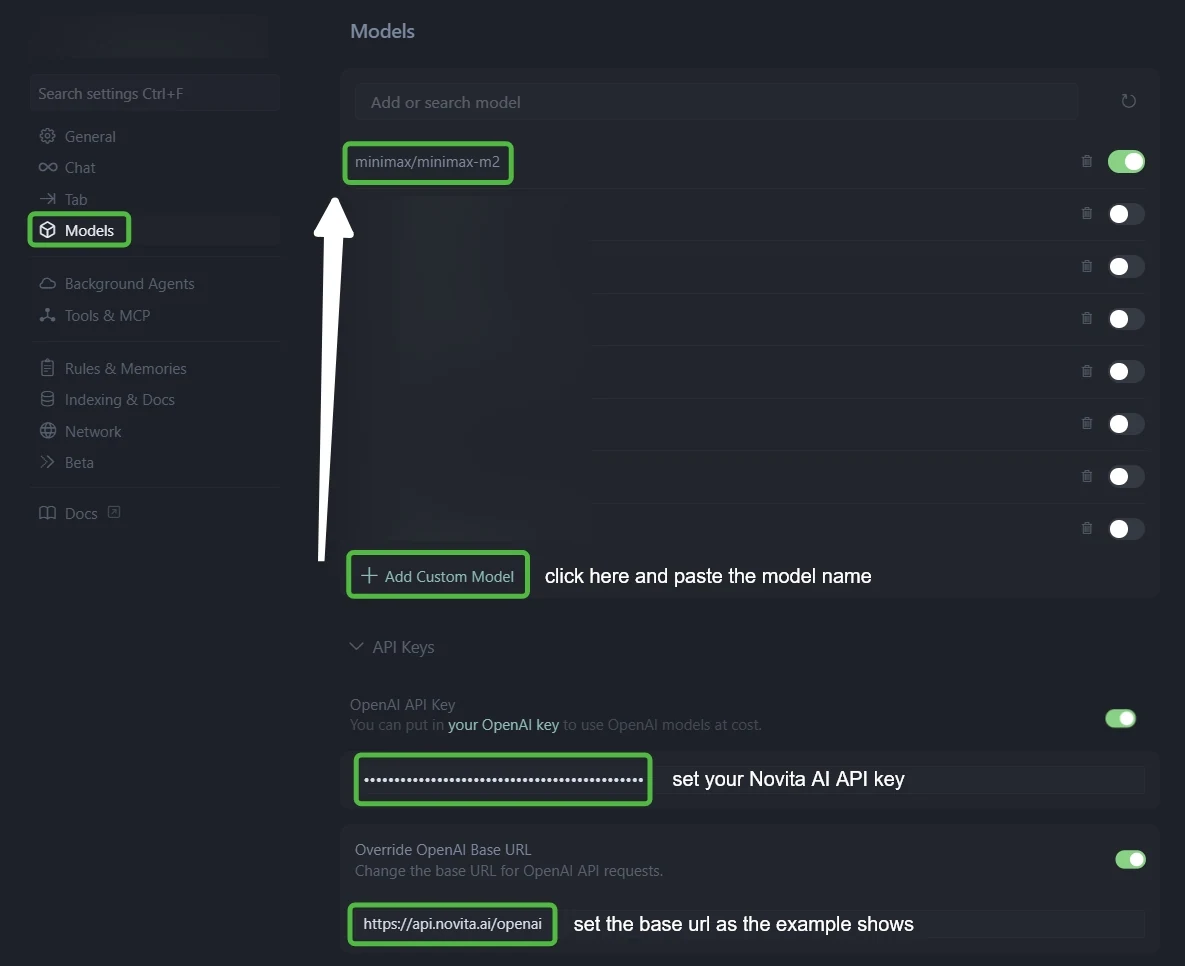
- Open Cursor Settings
- Navigate to the “Models” tab in the left menu
- Find the “API Configuration” section
Step 3: Configure Novita AI Integration
- Go to the API Keys settings.
- Enable both OpenAI API Key and Override OpenAI Base URL.
- Enter your Novita AI API key in the API Key field.
- Replace the Base URL with:
https://api.novita.ai/openai.
Step 4: Add Multiple AI Coding Models
Click ”+ Add Custom Model” and add each model:
minimax/minimax-m2.5qwen/qwen3-coder-Nextzai-org/glm-5deepseek/deepseek-v3.2openai/gpt-oss-120bgoogle/gemma-3-12b-it
Step 5: Test Your Integration
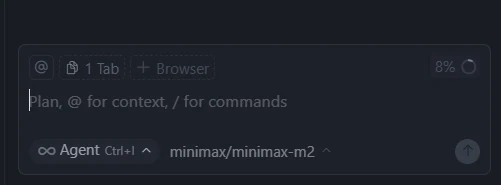
- Start new chat in Ask Mode or Agent Mode
- Try multiple models across different coding scenarios
- Confirm each model returns valid responses
Using Kimi K2.5 in Your Cursor Workflow
Code Completion and Suggestions
Once configured, Kimi K2.5 will automatically provide inline code completions as you type. The model’s understanding of context means it can suggest:
- Function implementations based on your docstrings or comments
- Import statements for libraries used elsewhere in your project
- Boilerplate code for common patterns in your codebase
- Bug fixes based on error messages in your code
Chat-Driven Development
Use Cursor’s chat panel (Cmd/Ctrl + L) to interact with Kimi K2.5 in natural language:
You: "Refactor this function to use async/await instead of promises"
[Select the code you want to refactor]

You: "Add error handling to all API calls in this file"

You: "Explain why this component is re-rendering unnecessarily"
Multi-File Edits
Kimi K2.5’s long-context window makes it particularly effective for changes spanning multiple files:
- Use
@filenamein chat to reference specific files - Ask for changes across your codebase: “Update all API endpoints to use the new authentication method”
- Review proposed changes before applying them
Visual Programming Workflows
Leverage Kimi K2.5’s visual capabilities in Cursor:
- UI from Screenshots: Drag and drop a UI screenshot into chat and ask “Generate React components for this interface”
- Diagram to Code: Share architecture diagrams and get implementation scaffolding
- Design to Implementation: Convert design specs into functional code structures
Troubleshooting Common Issues
| Issue | Solution (Simplified) |
|---|---|
| API Key Invalid | Check API key, quota, base URL, regenerate key |
| Slow Response | Lower maxTokens, check network, switch provider, enable streaming |
| Context Not Understood | Increase contextWindow, use @filename, re-index workspace, rewrite prompt |
| Custom Model Not Found | Restart Cursor, fix JSON, check Output errors, try env variable method |
Best Practices for Using Kimi K2.5 in Cursor
| Problem | Tips / What to Do |
|---|---|
| AI code is unreliable for complex tasks | Enable YOLO mode so Cursor can run tests/build and auto-fix until it passes |
| Too much manual back-and-forth testing | Use a TDD workflow: write tests first, then implementation, iterate until tests pass |
| AI often goes off track | Actively supervise, stop it early, and tell it to reset/recalibrate |
| Edge cases cause random failures | Collect failing cases from logs and turn them into new test cases |
| UI works but spacing/layout looks wrong | Use Fusion visual editing to drag and adjust like Figma, code updates automatically |
| Many TypeScript/build errors after coding | Ask Cursor to run nr build / tsc and fix errors until build passes |
| PR may fail due to lint/format/tsc issues | Maintain a fast “pre-PR” command (tsc + prettier + eslint) and let Cursor fix everything |
| Hard bugs are difficult to debug from code alone | Add logs, run the code, paste logs back into Cursor for targeted fixes |
| Need quick local edits without full agent workflow | Use Command K for fast inline edits |
| Need agent to focus on selected code | Use Command I to open agent chat with the selection in context |
| Terminal commands are annoying to remember | Use Command K in terminal and describe what you want in plain English |
| Autocomplete/tab behavior feels confusing | Practice Cursor’s Tab completion and suggestion navigation until it becomes natural |
| Writing commit messages is tedious | Use the Source Control magic wand to generate commit messages |
| Worried about introducing bugs | Use Bug Finder to compare changes vs main branch and detect likely issues |
| Concern about losing coding skills with AI | Let AI handle repetitive work, focus your effort on debugging, architecture, and hard problems |
Integrating Kimi K2.5 into Cursor opens up new possibilities for AI-assisted development, particularly if you value long-context understanding, visual programming capabilities, and document-aware coding assistance. The setup process is straightforward: obtain API access through Novita AI or Moonshot’s platform, configure Cursor’s settings with your API credentials and endpoints, and optimize parameters for your specific coding workflows.
Frequently Asked Questions
What is Cursor and how does it work with Kimi K2.5?
No, Kimi K2.5 requires API access through Moonshot AI or a third-party provider like Novita AI, both of which charge based on usage. Pricing varies by provider.
Does Kimi K2.5 support all programming languages in Cursor?
Test with your specific language to verify code quality and suggestions meet your standards.
Can I switch between Kimi K2.5 and other models in Cursor?
Yes, Cursor allows you to configure multiple models and switch between them in settings, or you can temporarily change the model for specific tasks through the chat interface.
Novita AI is an AI cloud platform that offers developers an easy way to deploy AI models using our simple API, while also providing an affordable and reliable GPU cloud for building and scaling.
Recommend Reading