OpenAI’s first open-source large model series, GPT-OSS, is here. With its efficient Mixture-of-Experts (MoE) architecture, support for up to 128k context length, and strong performance in reasoning, science, and coding, it brings new opportunities for developers. Anyone can now download and run this advanced language model on their own hardware. But there’s a key question: How much VRAM do you actually need to run GPT-OSS?
This article will break it down for you:
- GPU recommendations: Which cards are best, from consumer to data center level?
- VRAM optimization: How can you use quantization and new frameworks to reduce resource usage?
- Deployment options: Local vs. cloud GPU—what’s more cost-effective?
- Easiest access: How to use API services and avoid hardware headaches?
Whether you’re an indie developer or a small team, this guide will help you make the smartest choice.
How Much VRAM Does GPT OSS Need?
GPT OSS is a super efficient and scalable large language model architecture. It uses this thing called Mixture-of-Experts, or MoE, along with an autoregressive Transformer design. Thanks to sparse activation, it can run really big models much faster and more efficiently. It also supports super long contexts—up to 128,000 tokens—so it can handle long documents or complex conversations easily. The architecture combines RoPE position encoding and switches between global and local attention windows, which helps it manage both detailed and broad content. GPT OSS is really strong when it comes to reasoning, science, and coding.
It’s also easy to work with because it’s directly compatible with the OpenAI API and popular tokenizers, so developers can plug it into their existing workflows without much trouble. For training, GPT OSS uses massive, high-quality datasets and is trained on lots of GPUs, plus it uses reinforcement learning to make sure it’s safe, reliable, and good at following instructions.
Another cool thing is that it supports different reasoning modes, so you can balance between speed, accuracy, and cost depending on your needs. On top of that, GPT OSS is built for tool use and is great at managing dialogue formats and roles, so it’s super flexible and safe for even the most demanding or complex applications.
| Model | Layers | Total Params | Active Params Per Token | Total Experts | Active Experts Per Token | Context Length | Single GPU VRAM Requirement |
| gpt-oss-120b | 36 | 117B | 5.1B | 128 | 4 | 128k | 80GB |
| gpt-oss-20b | 24 | 21B | 3.6B | 32 | 4 | 128k | 16GB |
Tips for Choosing a GPU For GPT OSS
-
VRAM size is the most important:
- For GPT-OSS 20B, you’ll want a GPU with at least 16GB of memory.
- For GPT-OSS 120B, you’re looking for something with at least 80GB of VRAM.
-
GPU architecture matters:
The model works best with newer GPU architectures. The official docs specifically say it’s optimized for Hopper and Blackwell chips—like the H100, H200, and GB200—so using one of those will give you the best performance. -
Software and drivers:
NVIDIA GPUs are usually the best bet, since their CUDA ecosystem is super mature and well-supported for AI tasks. Most of the big AI libraries, like Transformers, Triton, or vLLM, are deeply optimized for CUDA.
Recommended GPUs
For GPT-OSS 20B (needs at least 16GB VRAM):
- Consumer or pro cards like:
- NVIDIA RTX 4090 (24GB)
- NVIDIA RTX 4080 (16GB)
- NVIDIA RTX 4060 Ti (16GB)
- NVIDIA RTX 6000 Ada (48GB, pro card)
- AMD Radeon RX 7900 XTX (24GB)
For GPT-OSS 120B (needs at least 80GB VRAM):
- Data center cards like:
- NVIDIA H100 (80GB)
- NVIDIA H200 (141GB)
- NVIDIA A100 (80GB)
- NVIDIA A800 (80GB)
You can check detailed price on Novita AI!
How to Optimize VRAM Usage for GPT OSS?
Use lighter inference frameworks:
- Llama.cpp:
This is a cross-platform, lightweight inference engine that works on both CPU and GPU (CUDA, Metal, Vulkan). It supports quantized formats like GGUF, which can dramatically shrink model size and cut down memory use. - vLLM:
A high-throughput inference and deployment engine. It comes with advanced features like PagedAttention and Flash Attention 3, making it super efficient for serving large models.
Leverage advanced kernels and quantization:
- Flash Attention:
This is an efficient attention implementation that can greatly reduce memory usage and speed up computation, especially when you’re working with long sequences. - Mixed precision and quantization (mxfp4):
GPT-OSS supports the mxfp4 4-bit floating point format. When used with Triton kernels on Hopper or Blackwell GPUs, you get super low VRAM usage and blazing fast inference speeds. - MegaBlocks MoE kernel:
This is an optimized kernel for Mixture-of-Experts (MoE) models, helping boost efficiency on GPUs that aren’t Hopper architecture.
Install and optimize via the transformers library:
The official recommendation is to use the transformers library, which bundles lots of these optimizations. For best performance, you can install PyTorch and Triton specifically for CUDA 12.8:
# Upgrade the basic libraries
pip install --upgrade accelerate transformers kernels
# (Optional) For best performance with CUDA 12.8 and Triton 3.4, install this version of PyTorch
pip install torch==2.8.0 --index-url https://download.pytorch.org/whl/test/cu128
Cloud GPUs: A Smart Choice for Small Developers
Because the cost and complexity of running things locally can be pretty high, most developers actually prefer using cloud GPU services.
When to Choose a Local GPU
- You have a big budget and can afford tens or even hundreds of thousands of dollars up front.
- You have long-term, high-load needs for training or inference.
- You have strict data privacy requirements and can’t let data leave your own environment.
- You want total control over hardware, software, and networking.
When to Choose Cloud GPU
- You’re cost-sensitive and want to avoid big hardware purchases and ongoing maintenance—just pay as you go.
- Your needs are flexible, maybe you’re still experimenting, or your workload changes over time.
- You want instant access to the latest, most powerful GPUs like H100 or H200, without waiting for procurement.
- You don’t want to deal with tricky driver installs, environment setup, or physical maintenance.
How to Access GPT OSS on Cloud GPU like Novita AI?
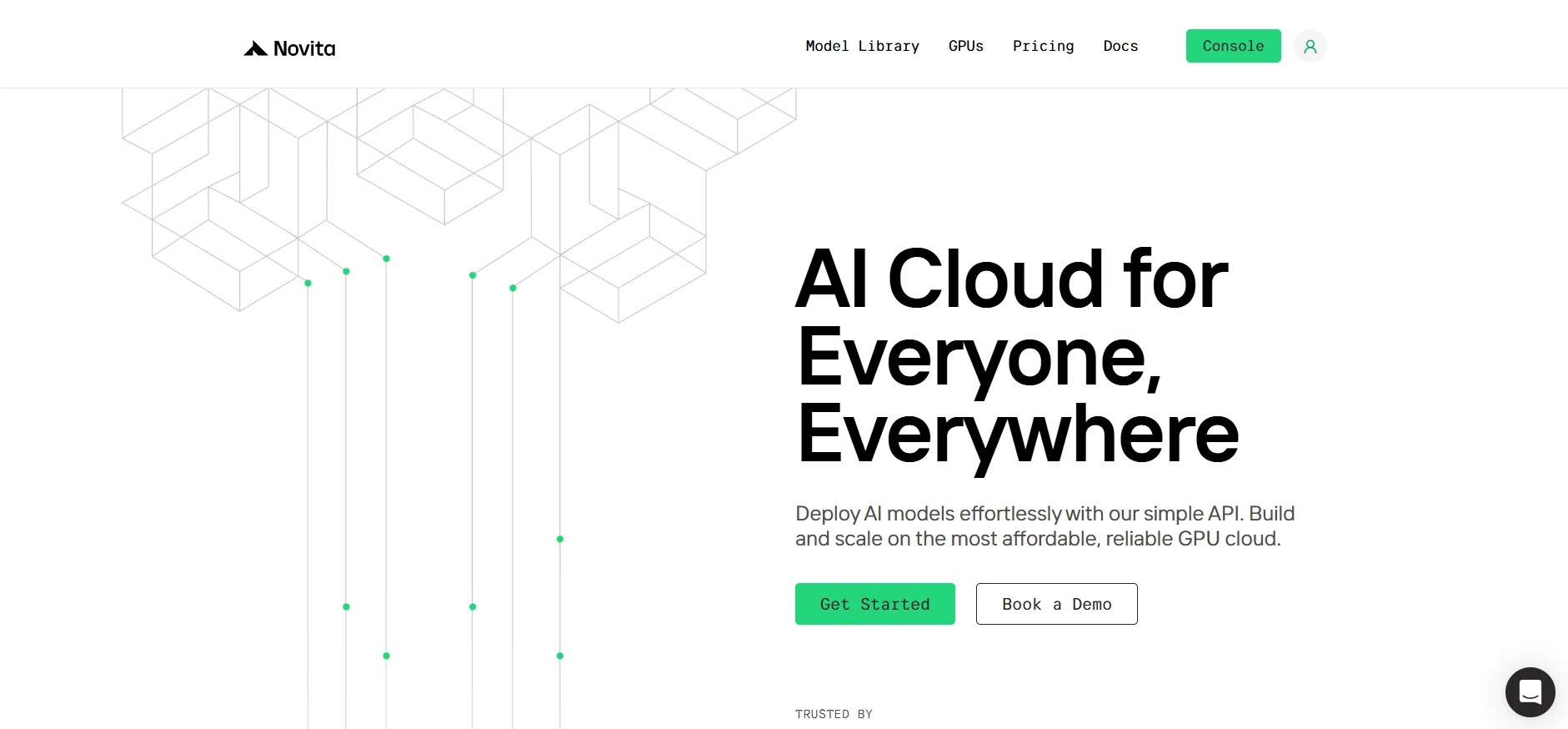
Step1:Register an account
If you’re new to Novita AI, begin by creating an account on our website. Once you’re registered, head to the “GPUs” tab to explore available resources and start your journey.
Try Novita AI’s High-Performance GPUs
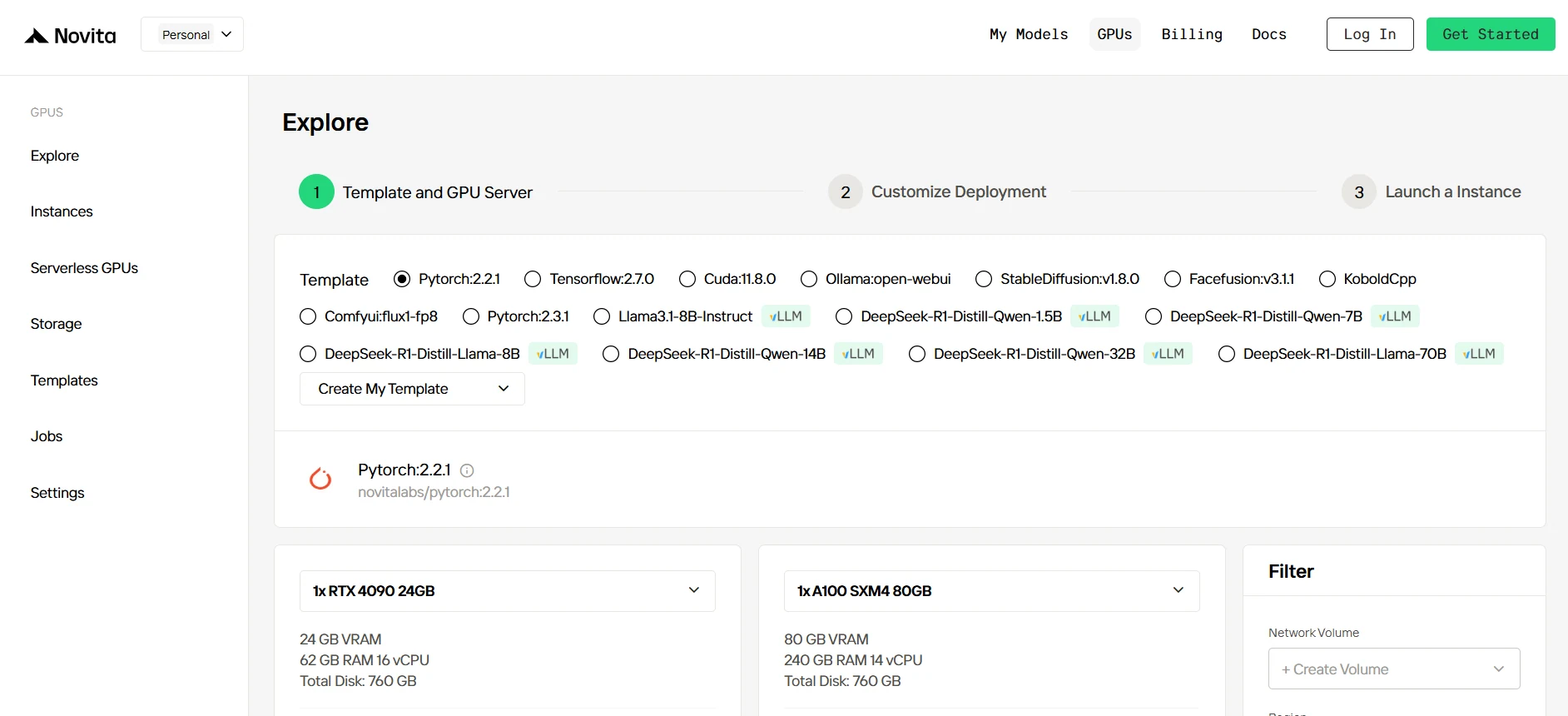
Step2:Exploring Templates and GPU Servers
Start by selecting a template that matches your project needs, such as PyTorch, TensorFlow, or CUDA. Choose the version that fits your requirements, like PyTorch 2.2.1 or CUDA 11.8.0. Then, select the A100 GPU server configuration, which offers powerful performance to handle demanding workloads with ample VRAM, RAM, and disk capacity.
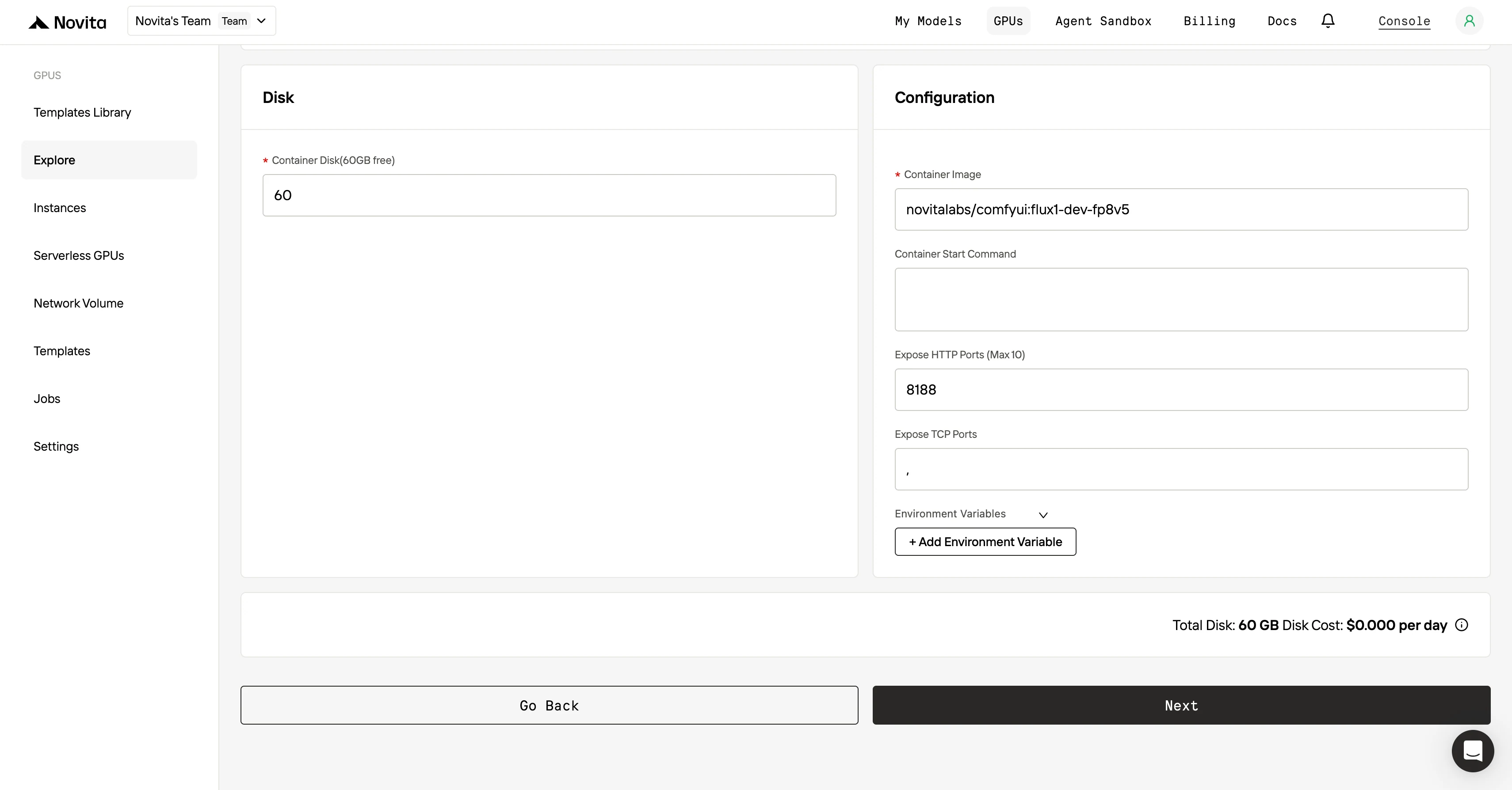
Step3:Tailor Your Deployment
After selecting a template and GPU, customize your deployment settings by adjusting parameters like the operating system version (e.g., CUDA 11.8). You can also tweak other configurations to tailor the environment to your project’s specific requirements.
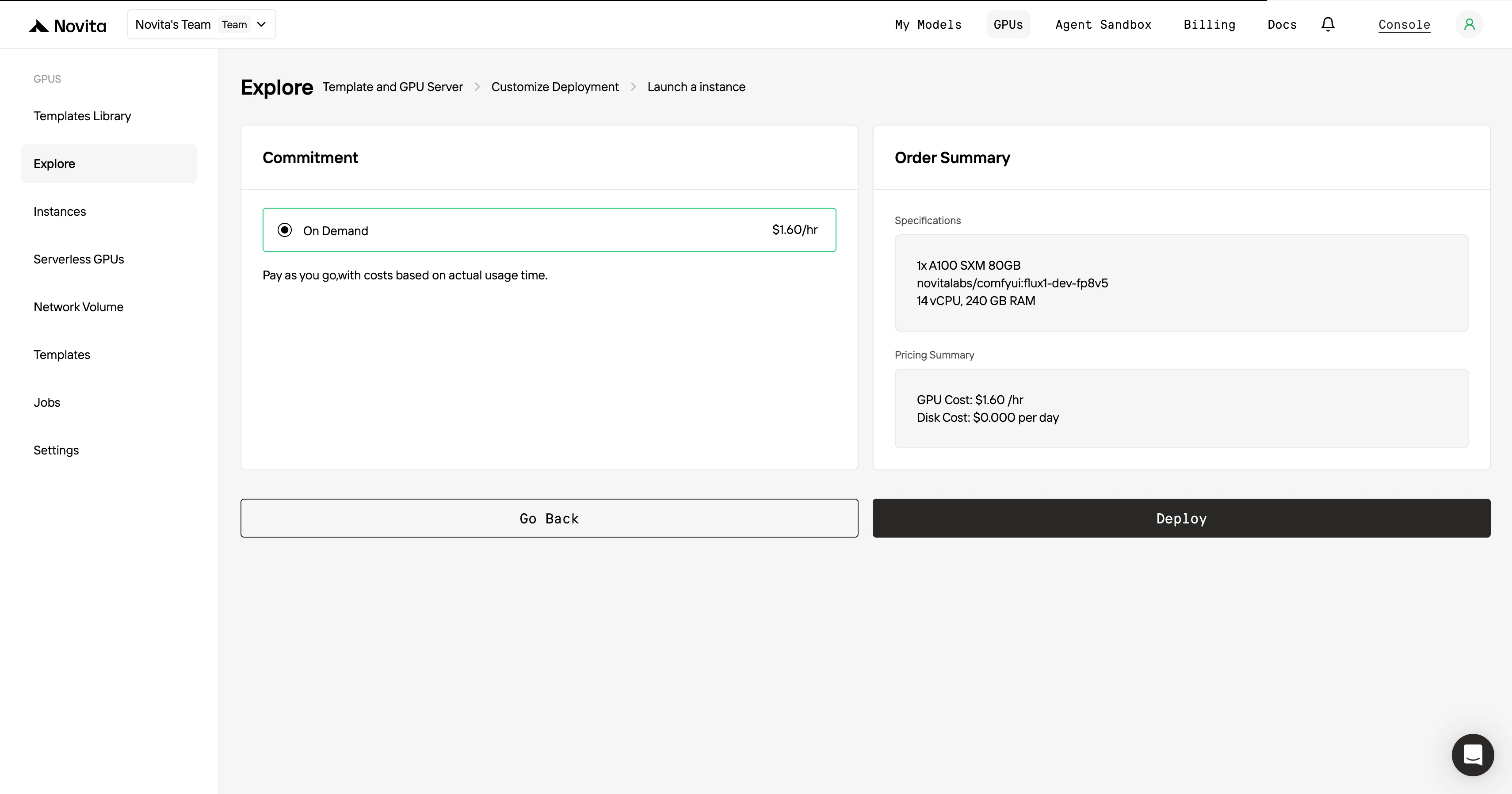
Step4:Launch an instance
Once you’ve finalized the template and deployment settings, click “Launch Instance” to set up your GPU instance. This will start the environment setup, enabling you to begin using the GPU resources for your AI tasks.
For Maximum Efficiency and Convenience, Use the API!
Novita AI provides GPT-OSS 120B
APIs with 131K context and costs of $0.1/input and $0.5/output. Novita AI also provides GPT-OSS 20B with 131 context and costs of $0.05/input and $0.2/output ,delivering strong support for maximizing GPT OSS’s code agent potential.Novita AI
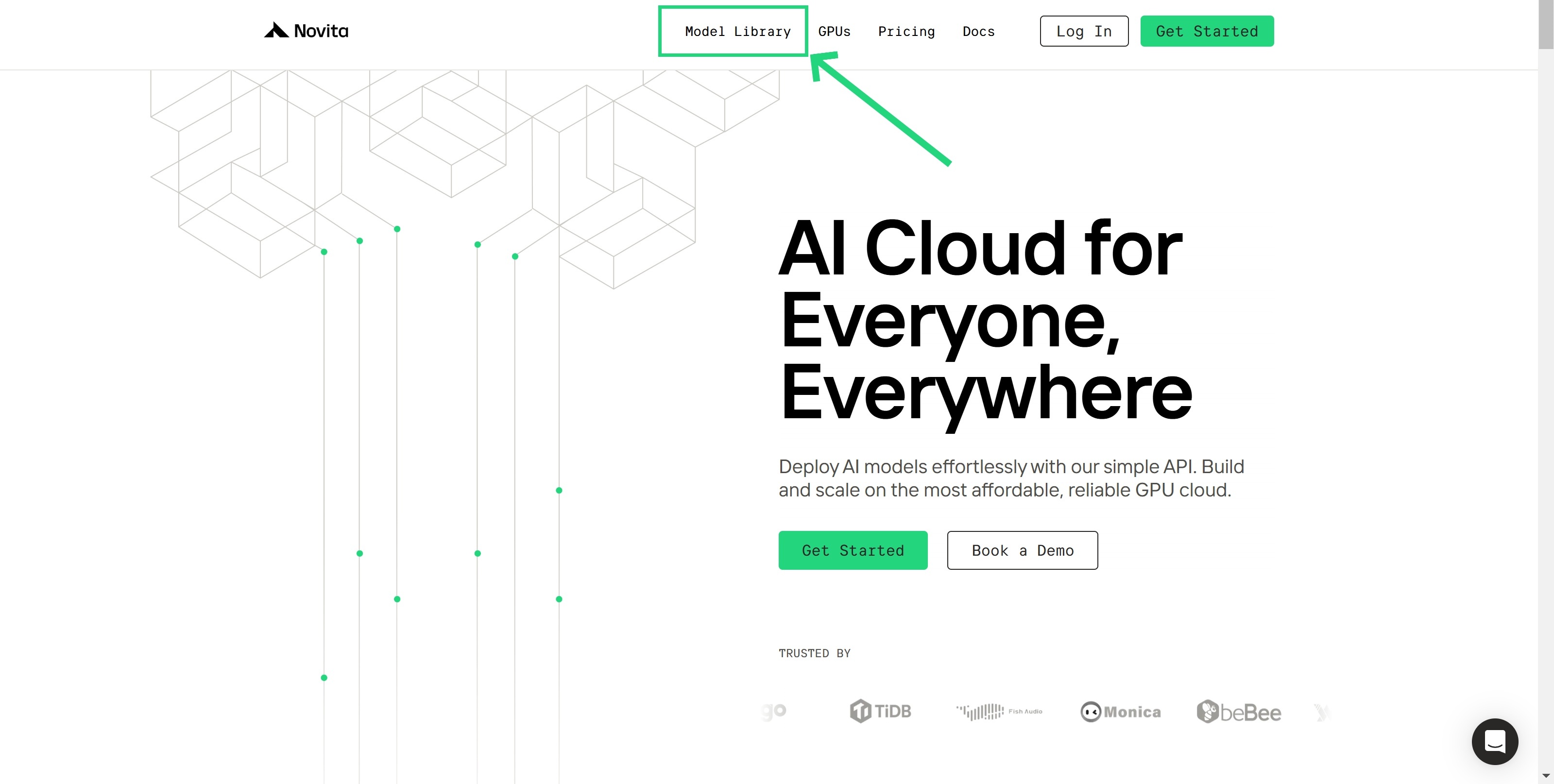
Step 1: Log In and Access the Model Library
Log in to your account and click on the Model Library button.
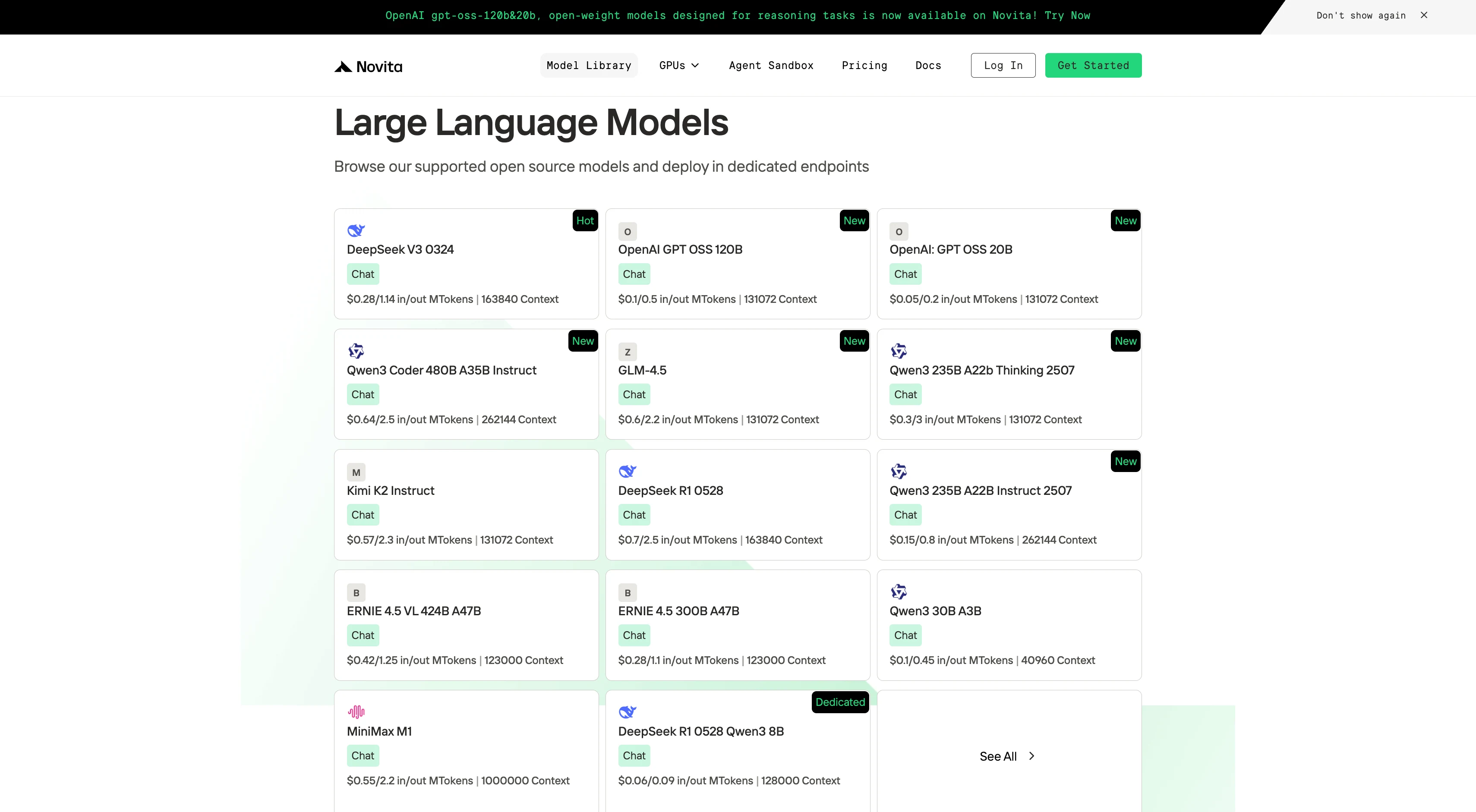
Step 2: Choose Your Model
Browse through the available options and select the model that suits your needs.
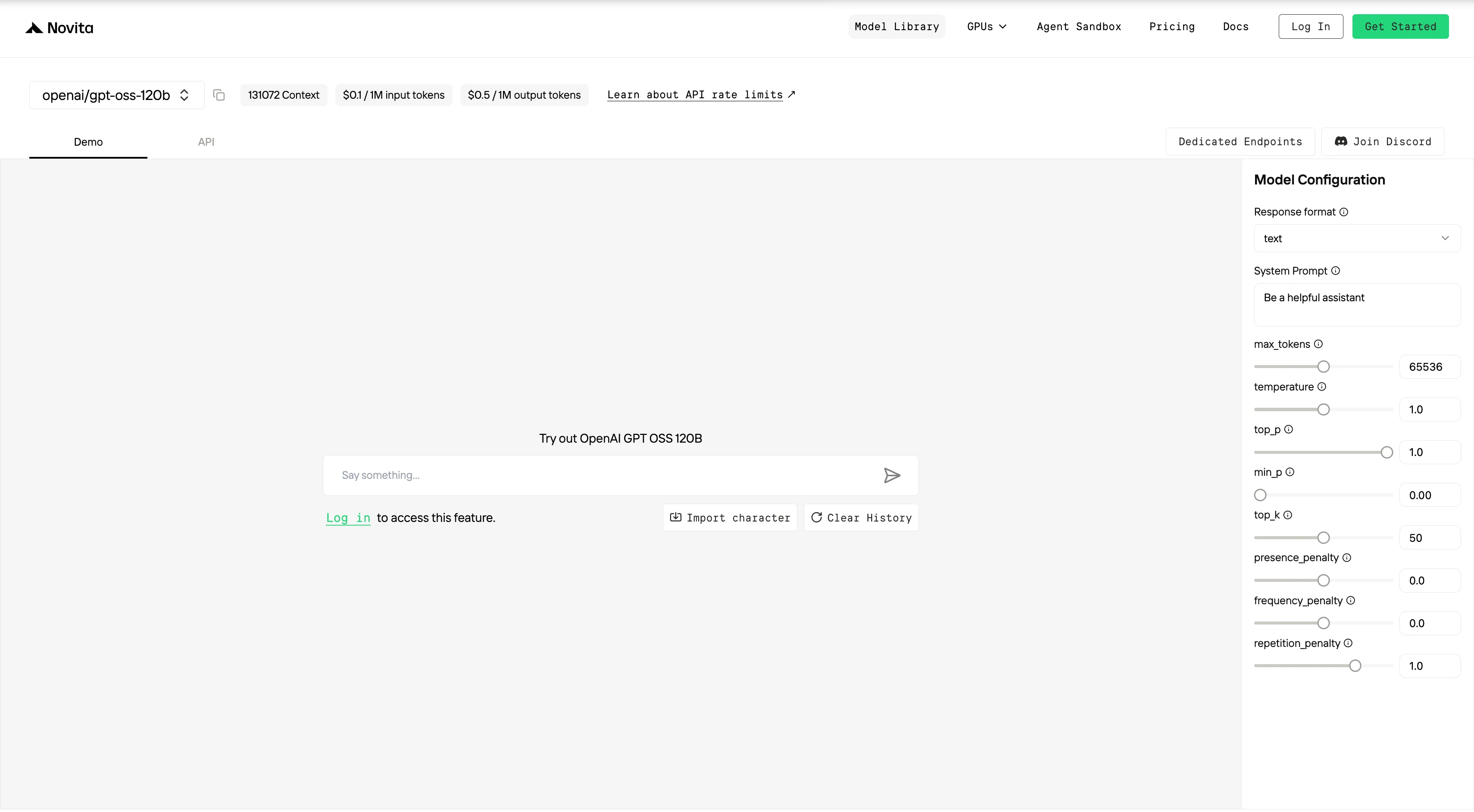
Step 3: Start Your Free Trial
Begin your free trial to explore the capabilities of the selected model.
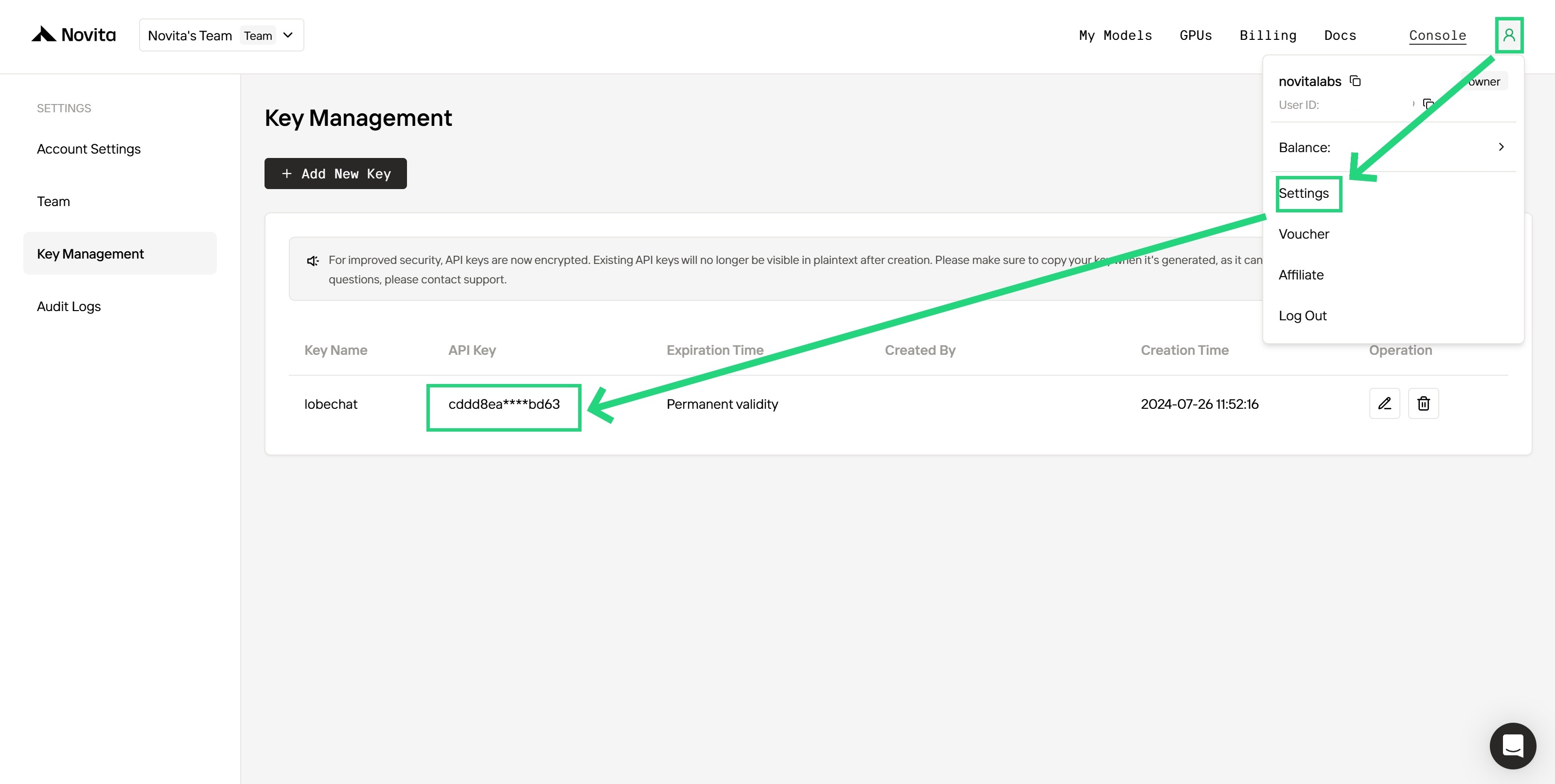
Step 4: Get Your API Key
To authenticate with the API, we will provide you with a new API key. Entering the “Settings“ page, you can copy the API key as indicated in the image.
Step 5: Install the API
Install API using the package manager specific to your programming language.
After installation, import the necessary libraries into your development environment. Initialize the API with your API key to start interacting with Novita AI LLM. This is an example of using chat completions API for python users.
from openai import OpenAI

client = OpenAI(
    base_url="https://api.novita.ai/v3/openai",
    api_key="",
)

model = "openai/gpt-oss-120b"
stream = True # or False
max_tokens = 65536
system_content = ""Be a helpful assistant""
temperature = 1
top_p = 1
min_p = 0
top_k = 50
presence_penalty = 0
frequency_penalty = 0
repetition_penalty = 1
response_format = { "type": "text" }

chat_completion_res = client.chat.completions.create(
    model=model,
    messages=[
        {
            "role": "system",
            "content": system_content,
        },
        {
            "role": "user",
            "content": "Hi there!",
        }
    ],
    stream=stream,
    max_tokens=max_tokens,
    temperature=temperature,
    top_p=top_p,
    presence_penalty=presence_penalty,
    frequency_penalty=frequency_penalty,
    response_format=response_format,
    extra_body={
      "top_k": top_k,
      "repetition_penalty": repetition_penalty,
      "min_p": min_p
    }
  )

if stream:
    for chunk in chat_completion_res:
        print(chunk.choices[0].delta.content or "", end="")
else:
    print(chat_completion_res.choices[0].message.content)
To unlock GPT-OSS’s power, understanding VRAM requirements is essential:
- GPT-OSS 20B needs at least 16GB of VRAM, so it runs on high-end consumer GPUs like the RTX 4060 Ti (16GB), making it accessible to individuals and enthusiasts.
- GPT-OSS 120B requires 80GB of VRAM, needing professional data center GPUs like the NVIDIA H100, which is out of reach for most individuals and small teams.
Local deployment gives the most control, but comes with high hardware costs and technical complexity. Using lightweight inference frameworks like Llama.cpp or vLLM, plus techniques like mxfp4 quantization and Flash Attention, can help reduce VRAM needs.
For most developers, cloud GPUs are the smarter choice—there’s no big upfront cost, and you get instant access to top-tier hardware. At same time, managed API services like Novita AI make it even easier: just call the API, and you’re ready to use GPT-OSS without dealing with hardware or deployment at all. This is the best way to balance performance, cost, and convenience and puts powerful AI within everyone’s reach.
Frequently Asked Questions
How much VRAM do I need to run GPT-OSS?
GPT-OSS 20B: at least 16GB VRAM.
GPT-OSS 120B: at least 80GB VRAM.
What’s the most affordable way to run GPT-OSS 20B locally?
Use a consumer GPU with 16GB VRAM, like the NVIDIA RTX 4060 Ti (16GB), and a lightweight framework like Llama.cpp with a GGUF quantized model.
How can I reduce GPT-OSS VRAM usage?
Use lightweight frameworks (Llama.cpp, vLLM) with built-in memory optimizations.
Quantize the model (use mxfp4 or GGUF) for lower precision and smaller memory footprint.
Enable efficient kernels like Flash Attention, especially for long texts.
Novita AI is an AI cloud platform that offers developers an easy way to deploy AI models using our simple API, while also providing an affordable and reliable GPU cloud for building and scaling.