Continue is an open-source tool that brings the power of LLMs directly into your coding environment, streamlining the development process. By integrating with various AI model providers, Continue enhances its capabilities, with the recent collaboration with Novita AI being a notable example.This article delves into the features of Continue, its integration with Novita AI, and how developers can benefit from this powerful combination.
Novita AI is a cloud platform that enables developers to effortlessly deploy AI models through our straightforward API, while also offering an affordable and dependable GPU cloud infrastructure for development and scaling.
What is Continue.dev?
Continue is an open-source software development assistant that operates as an extension for IDEs like VS Code and JetBrains. It allows developers to use LLMs like GPT-4, Code Llama, and others directly within their coding environment. Continue aims to streamline coding by eliminating the need to switch between the IDE and AI tools, by enabling developers to generate, improve, and explain code with natural language prompts. It functions by breaking down actions into steps, providing a flexible and controlled approach to AI-assisted coding.
Key functions
Continue offers several key features to enhance the coding workflow:
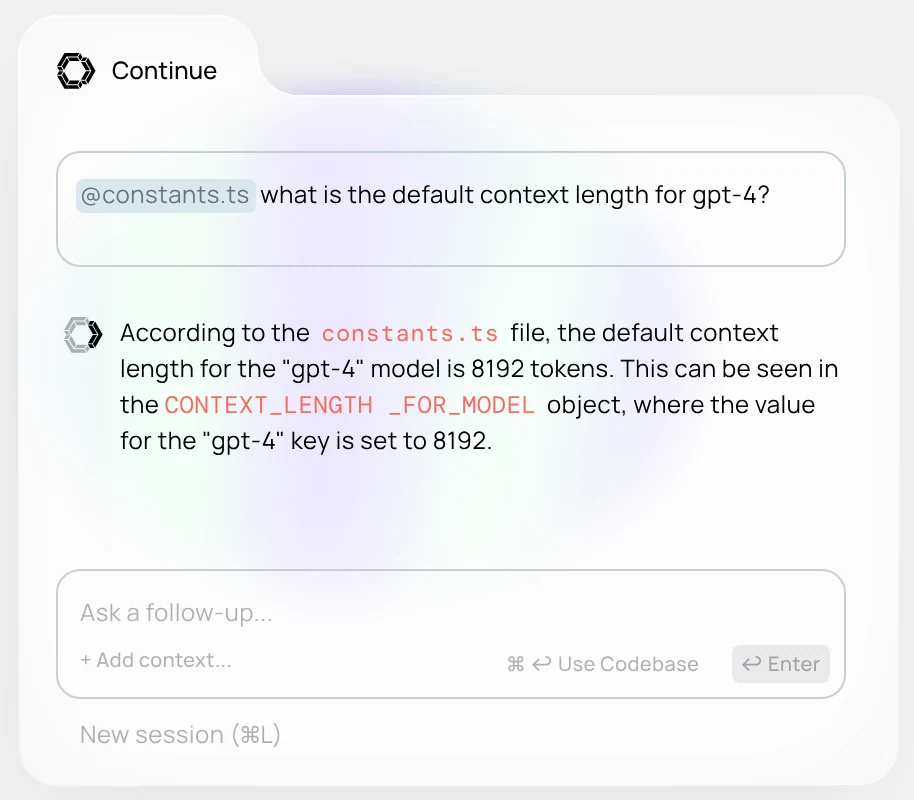
Chat: The chat feature allows developers to interact with LLMs using natural language… You can ask questions about the code, request explanations, and generate code snippets… You can highlight code sections to include as context in your chat prompts, or reference context from your codebase, documentation, IDE, or other tools using the ”@” symbol.
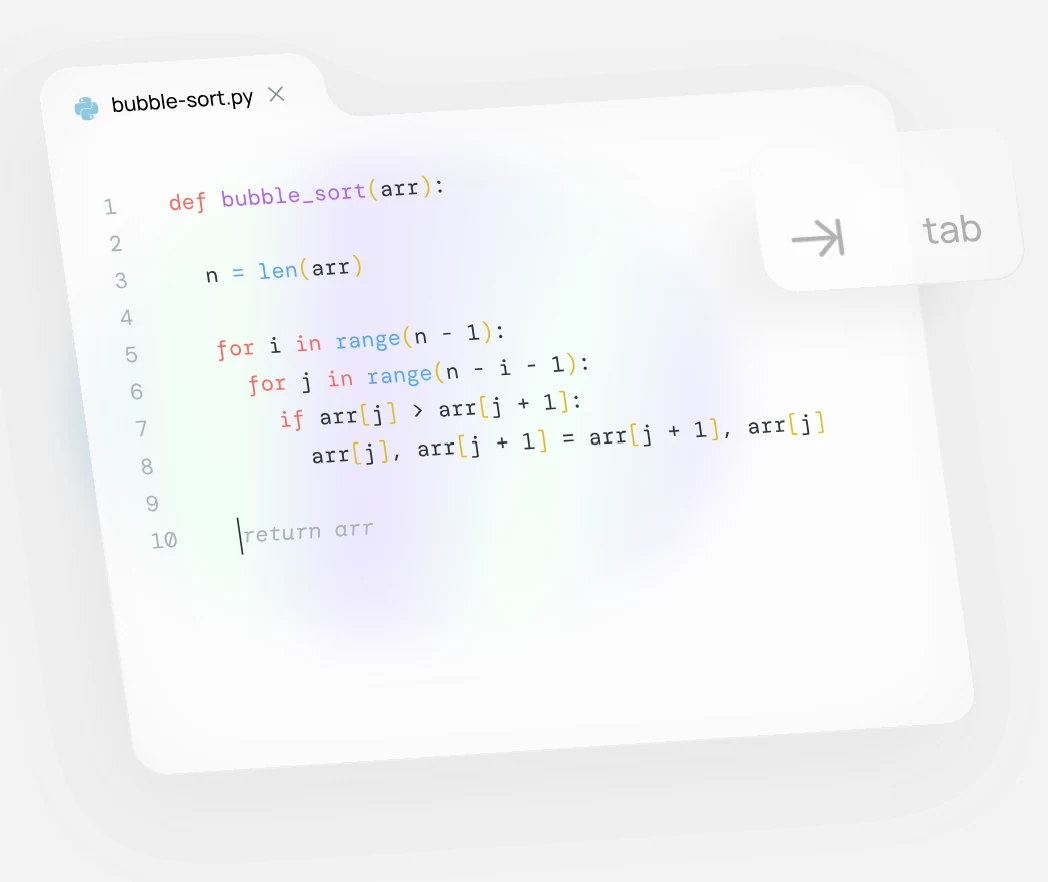
Autocomplete: This feature provides inline code suggestions as you type, leveraging AI models to predict and complete code, and it can be enabled from the Continue button on the IDE status bar. It uses context from the current cursor position, including file prefixes/suffixes, definitions from the Language Server Protocol, imported files, and recent files.
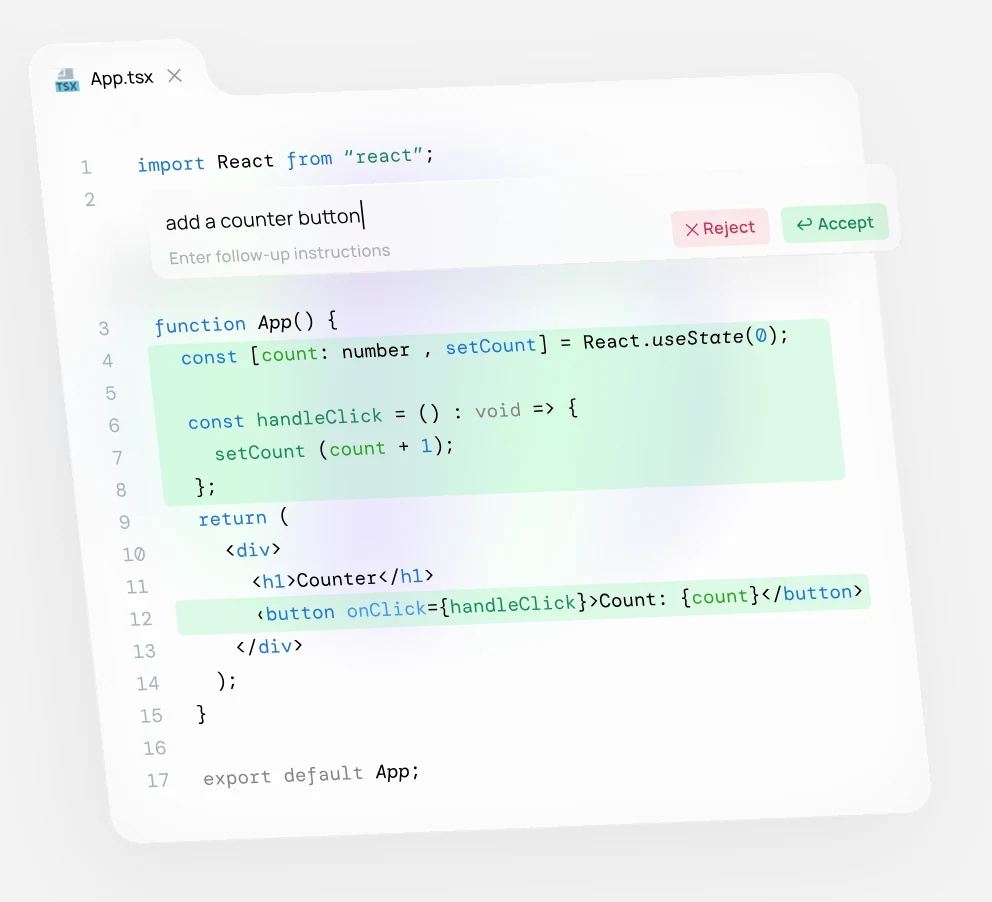
Edit: The edit feature allows for quick code modifications. By highlighting code and using a command (cmd/ctrl + i), developers can describe changes in natural language, and the changes will be displayed as inline diffs that can be accepted or rejected. It is suited for tasks like writing comments, generating unit tests, or refactoring.
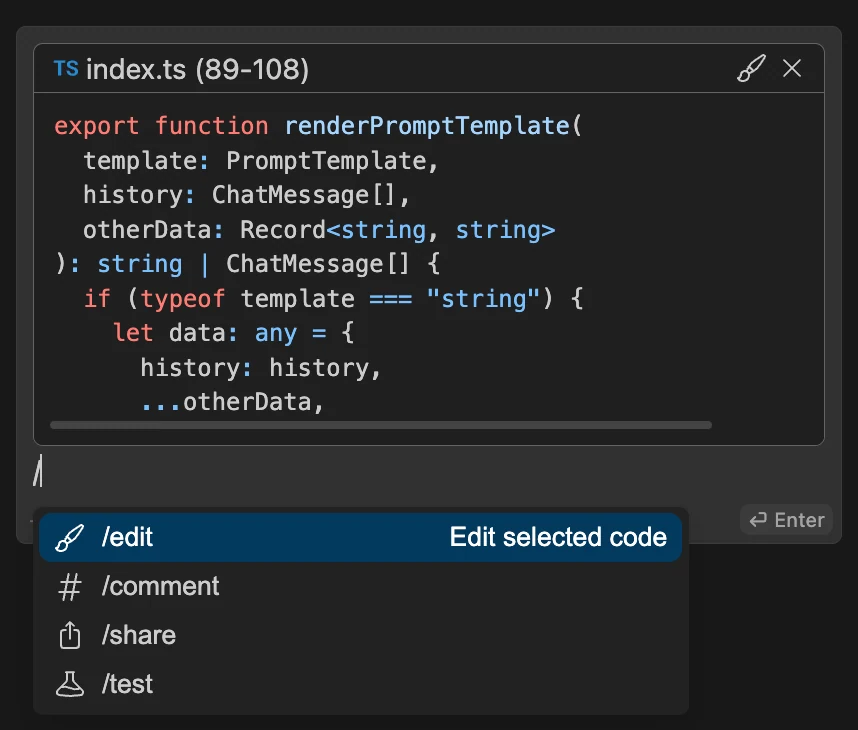
Actions: Actions are shortcuts for common use cases, and they can be invoked through slash commands in the chat window… Actions can also be triggered through quick actions displayed above classes or functions, right-click context menus, the debug action, and quick fixes that resolve code errors… These actions can be customized with .prompt files, allowing for tailored workflows.
Use Cases and Potential Applications
- Code Generation: Continue can generate code snippets, entire functions, or even new project files based on natural language instructions, speeding up initial development
- Code Refactoring: Developers can use Continue to refactor code, improving its readability and performance.
- Bug Fixing: By providing the context of the code and the error message, Continue can assist in identifying and fixing bugs quickly.
- Code Explanation: You can ask Continue to explain complex code, helping developers understand unfamiliar codebases.
- Test Generation: Continue can generate unit tests, improving the overall code quality and coverage.
- Documentation: Continue can create code comments and documentation, improving the overall maintainability of code.
How to use Continue.dev?
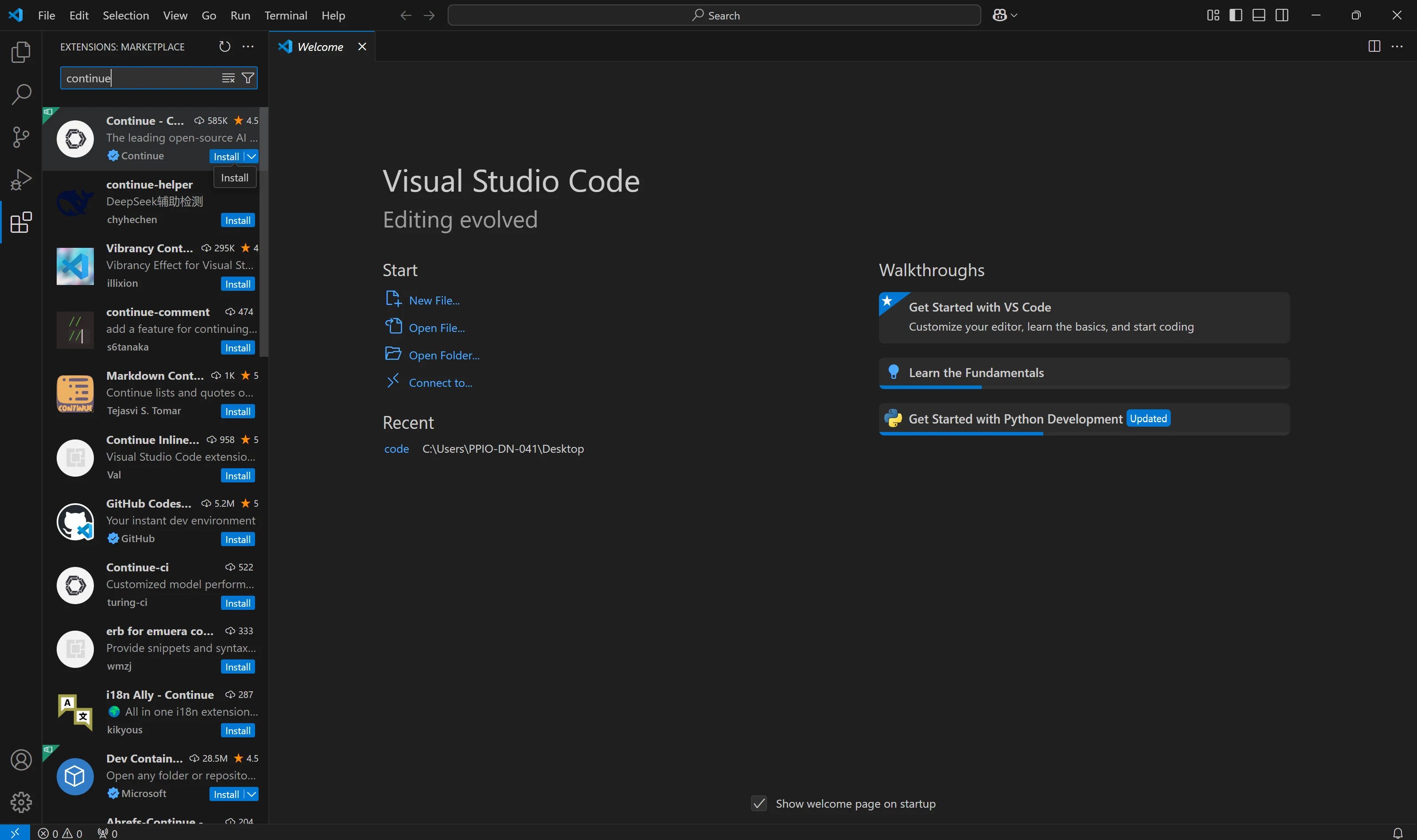
VS Code
- Click
**Install**on the Continue extension page in the Visual Studio Marketplace - This will open the Continue extension page in VS Code, where you will need to click
Installagain - The Continue logo will appear on the left sidebar. For a better experience, move Continue to the right sidebar
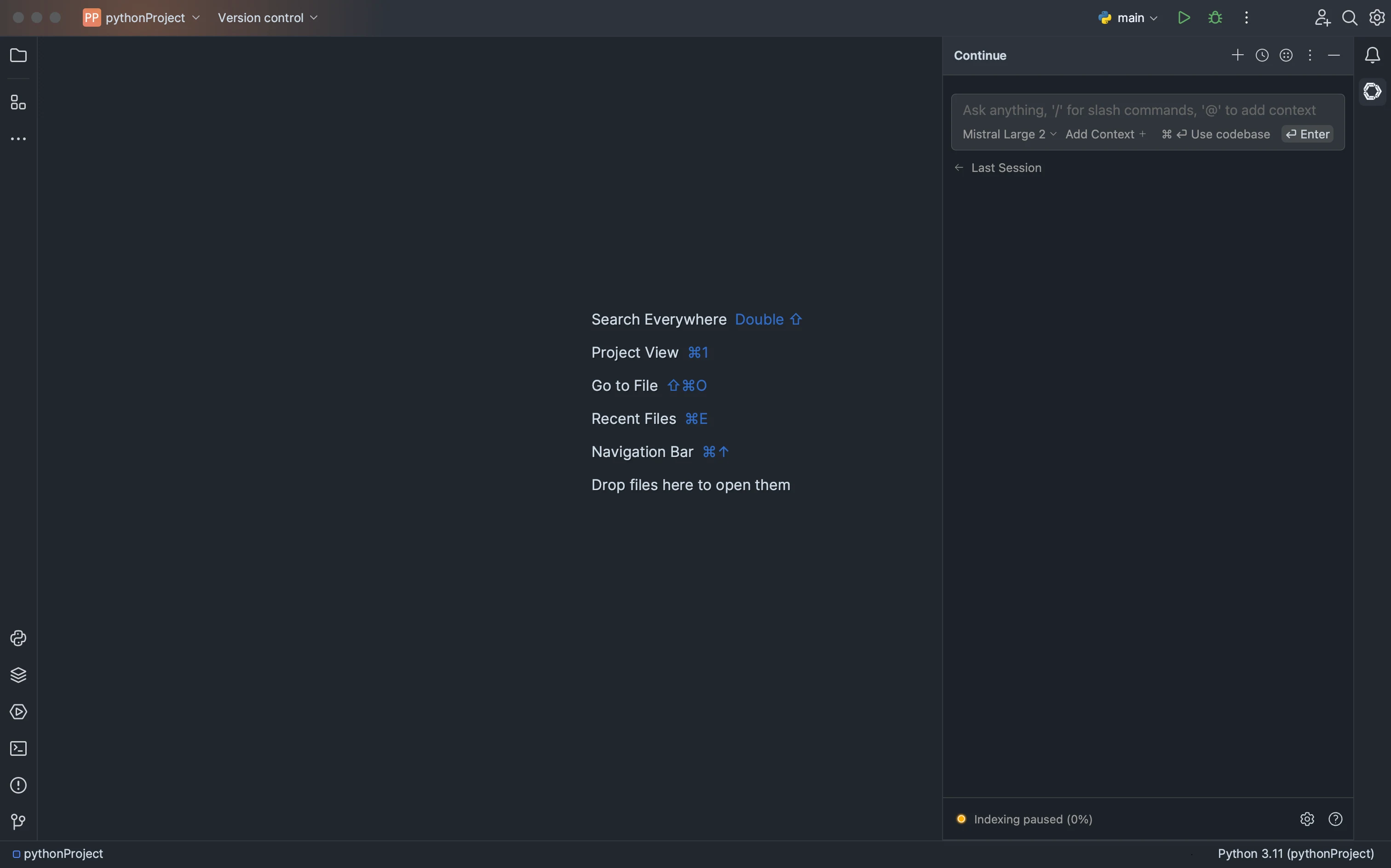
JetBrains
- Open your JetBrains IDE and open Settings using Ctrl + Alt + S
- Select Plugins on the sidebar and search for “Continue” in the marketplace
- Click
Install, which will cause the Continue logo to show up on the right toolbar
How to Integrate Novita AI with Continue Using an API Key
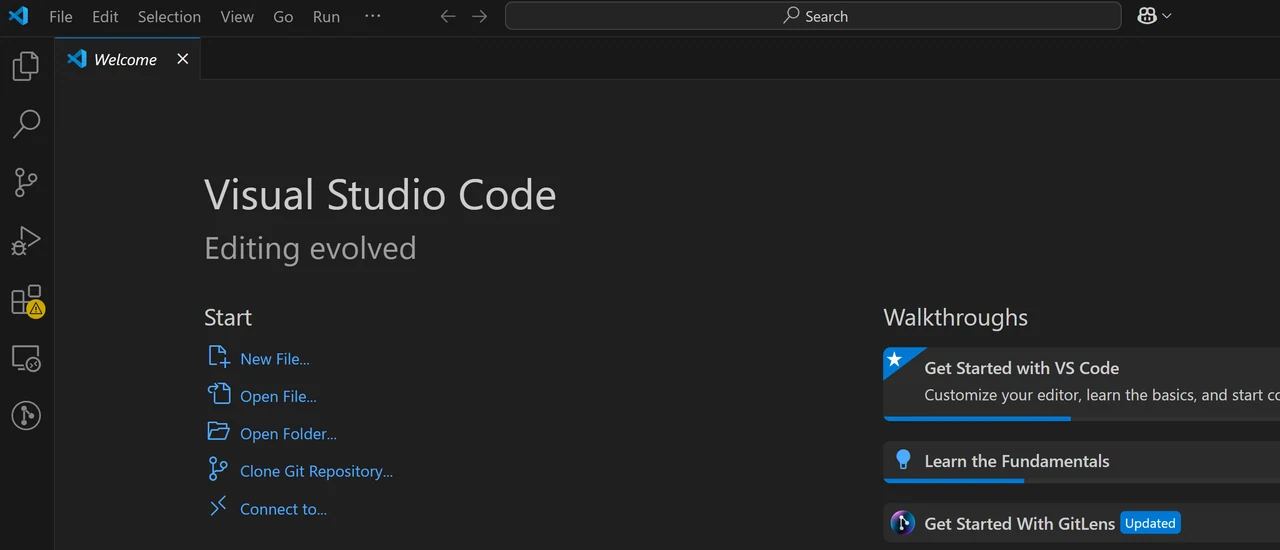
Step 1: Open VS Code
Step 2: Search ‘Continue’
Head over to the Extensions tab on the left, and just type in ‘continue’ in the search bar at the top
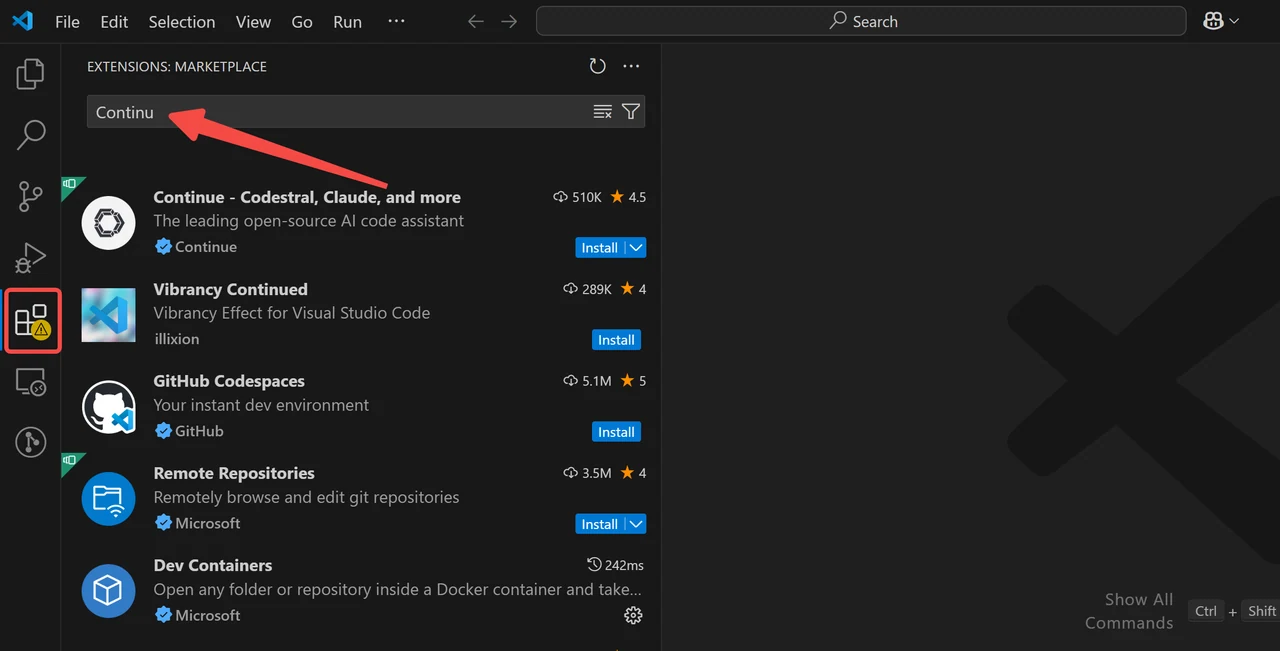
Step 3: Install ‘Continue’
Select the first extension and click ‘Install’ on the right
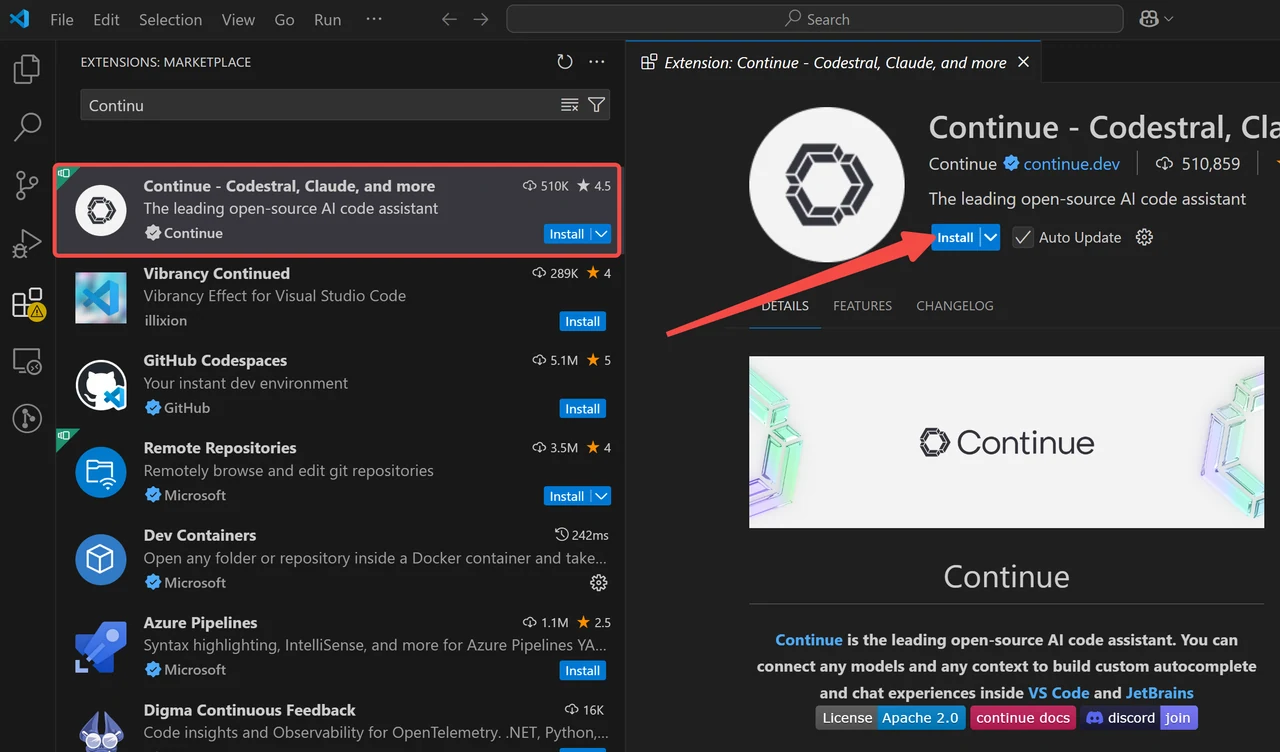
Step 4: Click ‘Continue’
After a brief moment of installation, an icon will appear on the left sidebar as shown in the image. Click on this icon.
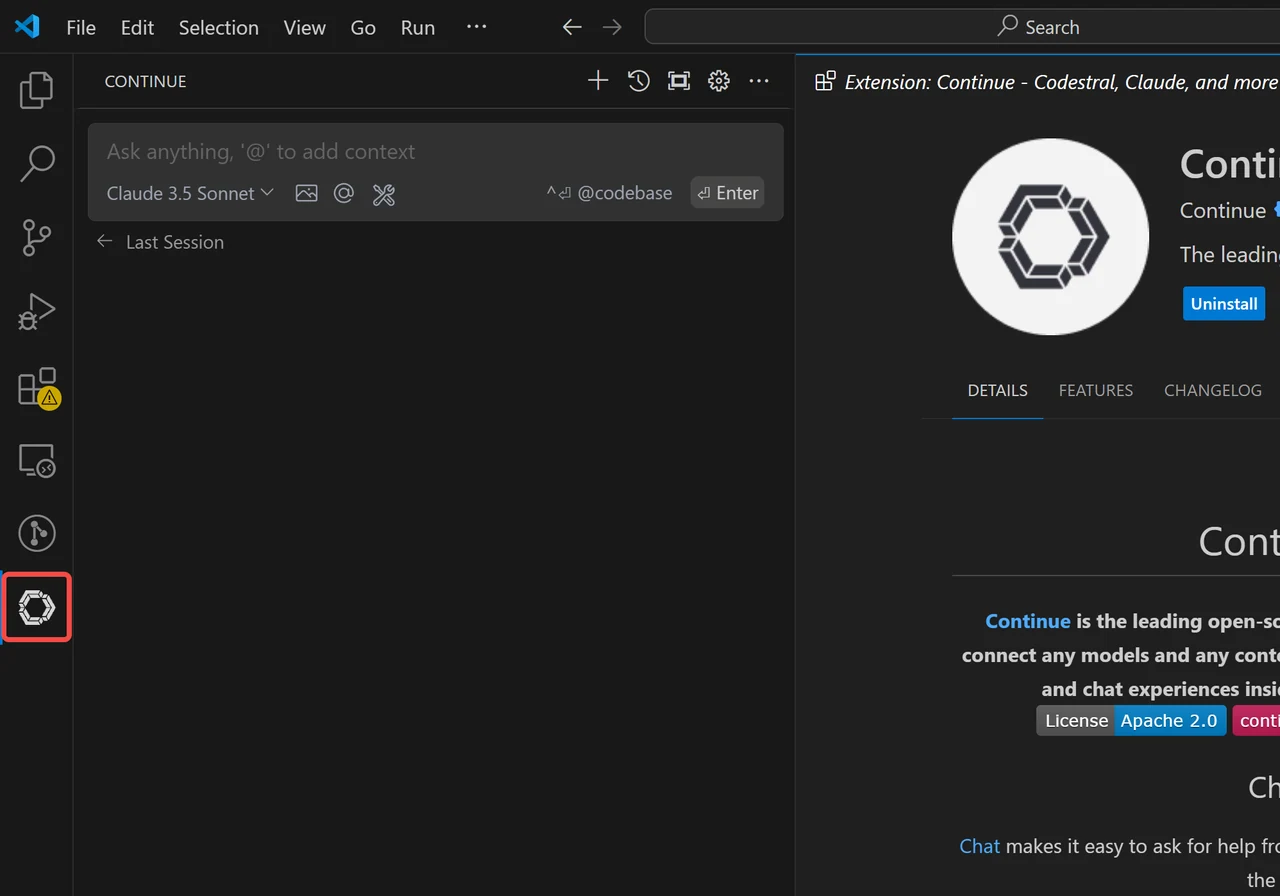
Step 5: Add your Chat Model (e.g. Novita AI)
Click each marked location shown in the diagram. In the dialog box that appears, select ‘NovitaAI’ from the Provider dropdown menu.
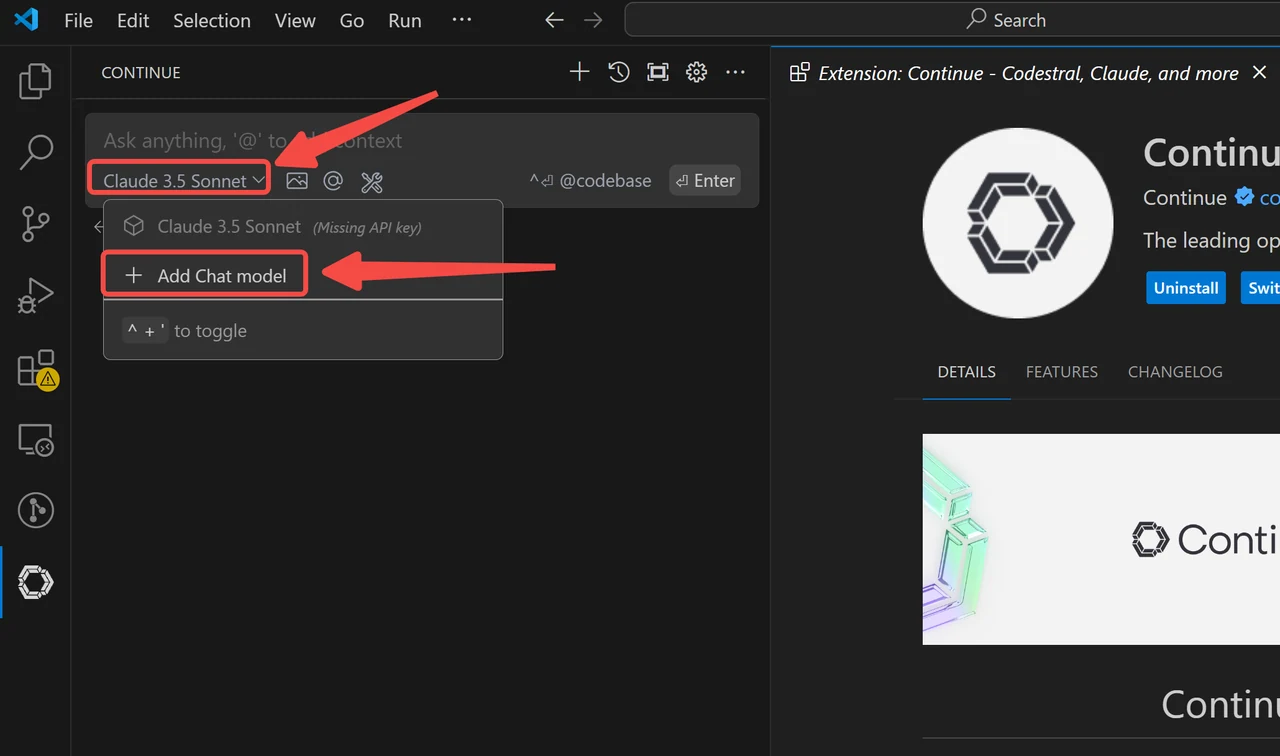
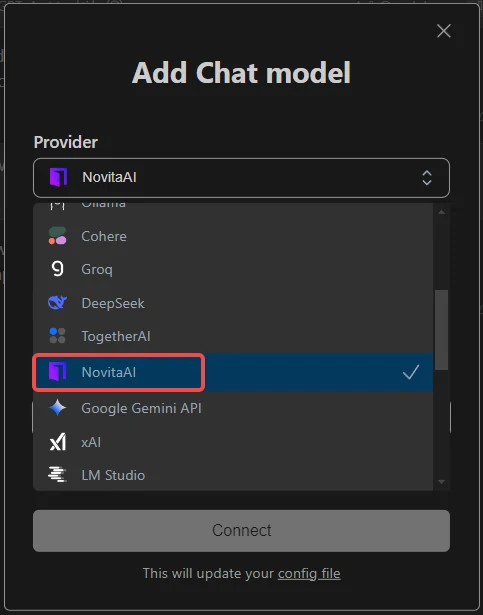
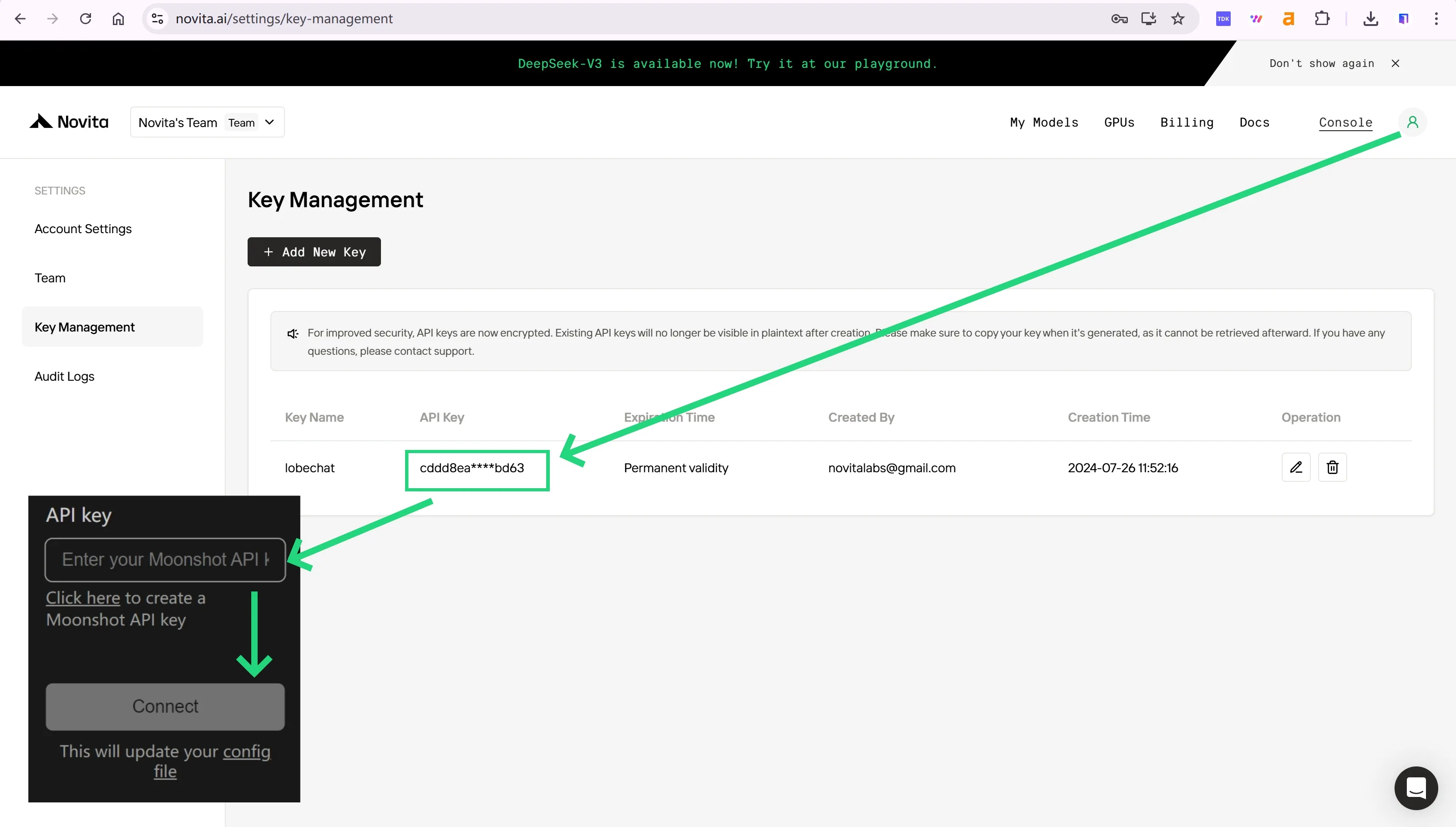
Step 6: Enter the API key from Novita AI and Get Connected
To authenticate with the API, Novita AI will provide you with a new API key. Clicking on the ‘user avatar’, you can copy the API key as indicated in the image.
How to Customize via Continue.dev
- Model Providers
- Switch and add multiple providers
- Supports OpenAI, Anthropic, Microsoft/Azure, Mistral, etc.
- Self-hosting available
- Model Types
- Set different providers for different features
- Example: separate models for chat and autocomplete
- Context Providers
- Add extra context to LLM prompts
- Support code snippets, documentation lookup, and search
- Slash Commands
- Custom functionality extension
- Generate shell commands, commit messages, and custom operations
- External Tools
- Call external tools and functions
- Currently Anthropic-only support
Useful Links and Resources
- Continue GitHub: https://github.com/continuedev/continue
- Continue Website and Docs: https://continue.dev
- Continue Discord: https://discord.gg/vapESyrFmJ
Conclusion
The integration of Continue and Novita AI marks a significant step forward in AI-assisted software development. By combining Continue’s flexible open-source framework with Novita AI’s powerful and affordable LLM APIs, developers gain access to a robust toolkit that enhances their productivity, creativity, and overall coding experience. With its strong feature set, customization options and the flexibility to integrate with various models, Continue empowers developers to write better code, faster.
Frequently Asked Questions
What are the best models to use with Continue?
For the best experience, consider Claude Sonnet 3.5 or Llama 3.1 405B. For local use, Llama 3.1 8B or DeepSeek Coder 2 16B are good options. Codestral is recommended for Autocomplete.
How can I customize Continue?
Use the config.json file to change model providers, add context providers, create custom slash commands, and more.
Is Continue free to use?
Continue is open-source and free to use, with an Apache 2.0 license, allowing both personal and commercial use.
Novita AI is an AI cloud platform that offers developers an easy way to deploy AI models using our simple API, while also providing a affordable and reliable GPU cloud for building and scaling.