Countless AI companies are now introducing agentic business intelligence systems that can instantly analyze your data and deliver comprehensive insights without the need for complex SQL queries or manual spreadsheet parsing. For example, a RAG-powered sales analytics system can answer questions like “What was our top-selling product last quarter?” in seconds rather than hours.
A RAG-powered sales analytics system solves these problems by using AI agents that can autonomously reason, make decisions, and coordinate external tools to enable natural language queries across your entire data ecosystem. Instead of learning database schemas or spreadsheet formulas, the agent breaks down your query, determines the best data source, performs targeted analysis, and delivers comprehensive, data-driven answers with proper citations.
For instance, you could use a different LLM, a custom document format, or adjust how agents analyze and behave to produce specific business outputs. In this tutorial, you’ll learn how to build your own RAG-powered sales analytics system using Novita AI’s unified LLM API, LangChain’s agent framework, and advanced document processing capabilities. You’ll create a system that automatically routes queries to optimal data sources and delivers actionable business insights.
What Is a RAG-Powered Sales Analytics System?
A RAG-powered sales analytics system uses Retrieval-Augmented Generation to provide accurate, grounded answers to retail sales questions by combining the power of Large Language Models with a retrieval layer that can access your actual business data.
This system usually involves:
- The AI agent analyzes the query and determines whether it requires structured data analysis (SQL), document analysis, or both.
- The agent intelligently routes queries to the most appropriate data source - SQL databases for quantitative analysis or document stores for qualitative insights.
- The agent utilizes various tools to gather information, including Pandas agents for analyzing CSV files, SQL agents for querying databases, and vector stores for retrieving documents. The agent can’t do essential things in the workflow without these tools.
- The agent processes the gathered information using specialized techniques, statistical analysis for numerical data, and semantic search for text documents.
- After analyzing the data, the agent creates a structured response that includes summaries, calculations, and proper citations.
Tools You’ll Need
Before we get into the building part of this article, let’s set up the necessary tools.
Novita AI
To build our RAG-powered analytics system, we’ll need access to powerful large language models (LLMs) and embedding models. Novita AI offers affordable, high-performance APIs that provide access to the latest large language models (LLMs), embedding models, and more through a single, unified interface.
LangChain
LangChain is an open-source framework designed for building applications with LLMs. With LangChain, you can create an agentic workflow that reasons step-by-step, uses tools, and interacts with APIs. For our sales analytics system, we’ll utilize LangChain to structure the analysis process, employ tools such as SQL agents and document processors, and synthesize all data into structured insights.
Streamlit
We’ll use Streamlit to build the interactive web interface. It’s perfect for rapid prototyping and creates professional-looking UIs with minimal code, making the tutorial simple to follow along with.
FAISS
For vector-based document retrieval, FAISS provides fast similarity search capabilities, enabling us to quickly find relevant document chunks based on user queries.
SQLAlchemy & PyMySQL
These handle our SQL database operations and MySQL connectivity, allowing our system to query structured business data directly.
pandas
Essential for CSV data manipulation and analysis. Our system uses pandas agents to perform complex calculations on tabular data.
System Architecture Overview
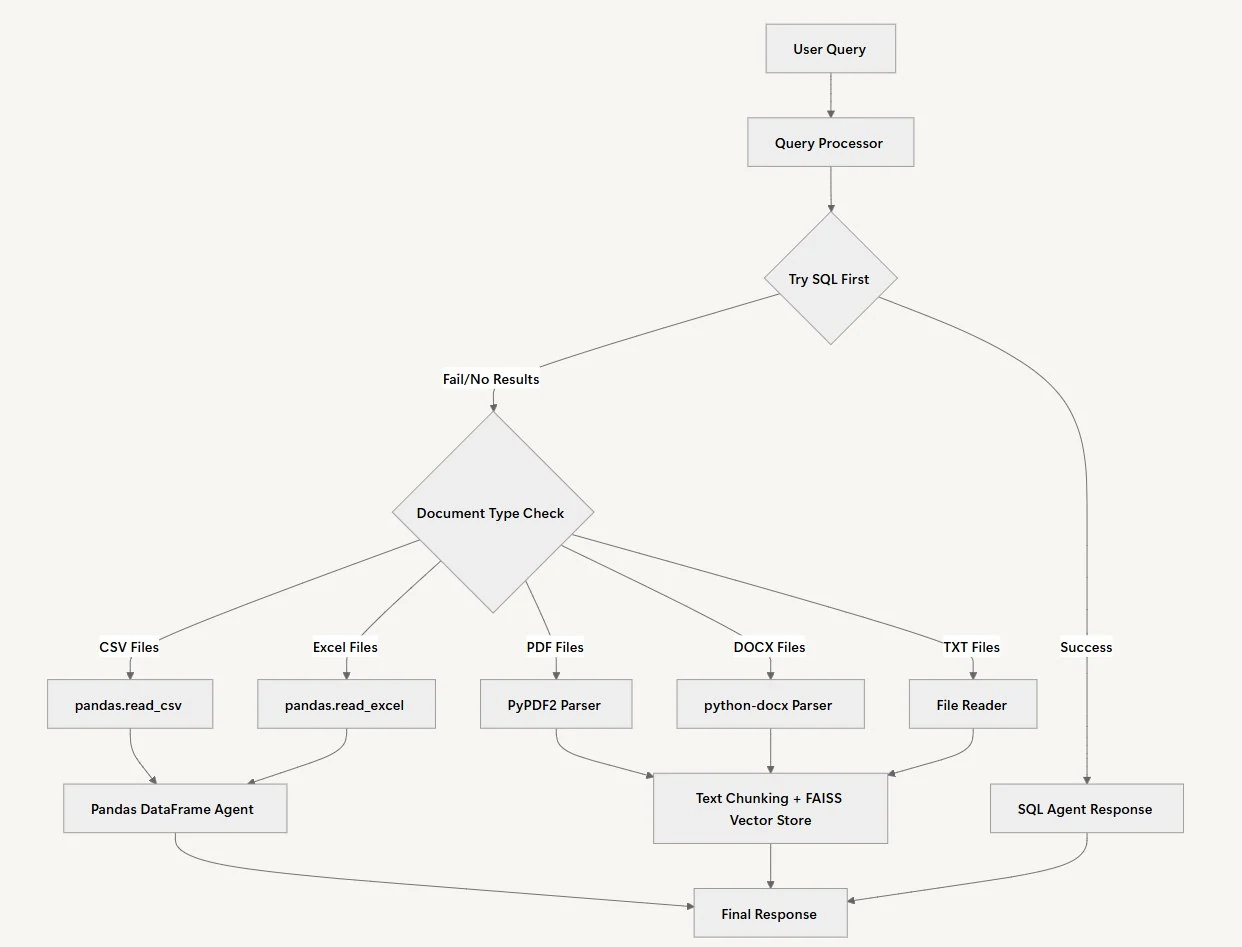
Our RAG system intelligently processes user queries through a multi-step workflow that automatically determines the best data source and processing method for each question. Rather than forcing users to know where their data resides, the system determines the optimal approach behind the scenes.
Query Processing
The initial step in our working process with our Agent is Query Processing. In this case, the Agent will verify the query put in place by the user and develop a personalized plan for processing that fits the query’s context. It will then determine the type of data the question must be analyzed against, namely, structured data, document analysis, or either of the two.
Data Source Selection
When a user submits a question, the system employs a straightforward approach: it attempts to resolve the issue by consulting the SQL database first. Data Source Selection makes sense because structured data often provides the most precise answers to quantitative questions. The SQL agent can quickly execute queries and return exact numbers with proper calculations.
Document Analysis
When the SQL agent returns empty results or can’t find relevant information, the system automatically switches to document analysis. The document processing path varies depending on the file type. CSV and Excel files are loaded into Pandas DataFrames for complex data analysis, while PDFs, Word files, and text documents are chunked and indexed using FAISS for semantic search.
Source Management
It is essential to properly cite all sources to ensure that the information provided can be traced back to a credible authority. This step in the workflow helps build trust with the audience, enabling them to verify any claims or data presented in the final report.
Response Synthesis
To connect the dots between all gathered information, the Agent brings together insights from all the analyzed data sources to form a coherent response. Without this phase of the workflow, the output might be a disjointed report.
Implementing the RAG-Powered Analytics Workflow
So far, you’ve gained an understanding of what the RAG-powered sales analytics system is all about. Now it’s time to implement it. To get started, we’ll perform a few key steps:
Installation and Setup
Before we proceed, let’s establish the complete file structure for our RAG analytics system. You’ll need to create the following files in your project directory:
| rag-analytics-system/ ├── .env # Environment variables ├── requirements.txt # Python dependencies ├── query_processor.py # Main QueryProcessor class ├── main.py # Streamlit interface |
Setting Up Dependencies
First, update the requirements.txt file with all necessary dependencies:
| langchain==0.3.26 langchain-openai==0.3.25 python-dotenv==1.1.1 SQLAlchemy==2.0.41 pandas==2.3.0 PyPDF2==3.0.1 faiss-cpu==1.11.0 PyMySQL==1.1.1 cryptography==45.0.4 langchain-experimental==0.3.4 streamlit==1.46.0 openpyxl==3.1.5 python-docx==1.2.0 |
Then Log in to Novita AI. Once logged in, navigate to the Manage API Keys page, click the Add New Key button, and enter your Key Name.
Novita AI will provide you with free credits to try out various models after signing up, so you don’t need to worry about purchasing credits before you start building or experimenting with them. Add your credentials to the .env file like the Novita API Key you created earlier:
| NOVITA_API_KEY=”your_novita_api_key_here” |
Now, install all required dependencies for the project:
| # Create a virtual environment python -m venv rag_analytics_env source rag_analytics_env/bin/activate # On Windows: rag_analytics_env\\Scripts\\activate # Install dependencies pip install -r requirements.txt |
Building the Query Processor
The entire RAG analytics workflow is encapsulated in a modular class called QueryProcessor. This class will manage the process of routing queries, performing SQL analysis, processing documents, synthesizing results, and running the complete analysis loop.
The QueryProcessor serves as the central orchestrator for our analytics system. Rather than building separate tools for different data types, this unified approach allows us to intelligently route queries to the most appropriate analysis method, whether that’s SQL databases, CSV files, or unstructured documents.
First, we’ll import the necessary libraries for the project in the query_processor.py file. These imports provide us with everything needed for language model integration, database connectivity, document processing, and vector storage:
connectivity, document processing, and vector storage:
from langchain_openai import ChatOpenAI, OpenAIEmbeddings
from langchain.agents import AgentExecutor, create_react_agent
from langchain_community.agent_toolkits.sql.base import create_sql_agent
from langchain_experimental.agents.agent_toolkits import create_csv_agent, create_pandas_dataframe_agent
from langchain_community.agent_toolkits.sql.toolkit import SQLDatabaseToolkit
from langchain.agents import AgentType
from langchain.text_splitter import RecursiveCharacterTextSplitter
from langchain_community.vectorstores import FAISS
from langchain_community.utilities import SQLDatabase
from langchain.prompts import PromptTemplate
from langchain_community.tools import ReadFileTool
from langchain.schema import Document
import os
from dotenv import load_dotenv
from sqlalchemy.engine import Engine
import glob
import pandas as pd
load_dotenv()
Next, we initialize the analytics agent with access to an LLM via the Novita API and various data processing tools. The initialization method sets up all the core components we’ll need: the language model for understanding queries, embeddings for document similarity search, and text splitting for processing large documents efficiently.
class QueryProcessor:
    def __init__(self, documents_folder: str, sql_engine: Engine):
        self.documents_folder = documents_folder
        self.sql_engine = sql_engine
        self.llm = ChatOpenAI(
            model="google/gemma-3-27b-it",
            temperature=0,
            openai_api_key=os.getenv("NOVITA_API_KEY"),
            openai_api_base="<https://api.novita.ai/v3/openai>",
            default_headers={
                "X-Model-Provider": "google"
            }
        )
        self.embeddings = OpenAIEmbeddings(
            model="baai/bge-m3",
            openai_api_key=os.getenv("NOVITA_API_KEY"),
            openai_api_base="<https://api.novita.ai/v3/openai>",
            default_headers={
                "X-Model-Provider": "baai"
            }
        )
        self.text_splitter = RecursiveCharacterTextSplitter(
            chunk_size=1000,
            chunk_overlap=200,
            length_function=len,
        )
        self.sql_agent = None
        self._prepare_data_sources()
The constructor initializes several key components. We use a temperature of 0 for the LLM to ensure consistent, factual responses rather than creative variations. The text splitter is configured with overlapping chunks to maintain continuity of context when processing large documents. The _prepare_data_sources() method is called at the end to set up our specialized agents.
Creating Multi-Source Data Integration
The next step involves creating methods that initialize different data processing agents. Each agent specializes in handling specific data types and analysis tasks, much like having different experts for various kinds of questions.
   def _prepare_data_sources(self):
        """Prepare both SQL and document data sources"""
        # Prepare SQL agent
        self._prepare_sql_agent()

        # Prepare document agent
        self._prepare_document_agent()

    def _prepare_sql_agent(self):
        """Initialize SQL agent"""
        # Convert SQLAlchemy Engine to LangChain SQLDatabase
        db = SQLDatabase(self.sql_engine)
        toolkit = SQLDatabaseToolkit(db=db, llm=self.llm)
        self.sql_agent = create_sql_agent(
            llm=self.llm,
            toolkit=toolkit,
            agent_type=AgentType.ZERO_SHOT_REACT_DESCRIPTION,
         verbose=True
        )

    def _prepare_document_agent(self):
        """Initialize document agent using ReadFileTool and vector store"""
        # Get all supported files
        supported_files = []
        for ext in ['*.txt', '*.pdf', '*.docx', '*.xlsx', '*.xls', '*.csv']:
            supported_files.extend(glob.glob(os.path.join(self.documents_folder, ext)))

        print(f"\
Found {len(supported_files)} supported files in {self.documents_folder}")

        if supported_files:
            # Create ReadFileTool
            read_file_tool = ReadFileTool()

            # Create tools list
            tools = [read_file_tool]

            # Create the prompt template for the react agent
            prompt = PromptTemplate.from_template("""
            You are a helpful assistant that can answer questions about business documents.
            You have access to the following tools:

            {tools}

            Use the following format:

            Question: the input question you must answer
            Thought: you should always think about what to do
            Action: the action to take, should be one of [{tool_names}]
            Action Input: the input to the action
            Observation: the result of the action
            ... (this Thought/Action/Action Input/Observation can repeat N times)
            Thought: I now know the final answer
            Final Answer: the final answer to the original input question

            Begin!

            Question: {input}
            Thought: I should read the relevant documents to find the answer
            {agent_scratchpad}
            """)

            agent = create_react_agent(self.llm, tools, prompt)
            self.document_agent = AgentExecutor.from_agent_and_tools(
                agent=agent,
                tools=tools,
                verbose=True
            )
            print("\
Document agent initialized successfully")
        else:
            print("\
No documents found in the specified folder.")
The’ prepare_sql_agent() ’ method creates a specialized agent for database queries. We use the ZERO_SHOT_REACT_DESCRIPTION agent type, which means the agent can reason about SQL queries without needing specific examples, making it adaptable to different database schemas. The _prepare_document_agent() method scans for supported file types and creates a flexible agent that can read various document formats. The ReAct (Reasoning and Acting) prompt template guides the agent through a structured thinking process, similar to how a human analyst would approach document analysis.
Document Processing and Vector Storage
Next, we need to handle how the workflow processes different document types. This section creates methods that handle CSV/Excel files using pandas agents and unstructured documents using vector storage. The key insight here is that different data types require different processing strategies.
CSV_PROMPT_PREFIX = """
IMPORTANT: You are working with a pandas DataFrame called 'df' that has been loaded with the actual data.
DO NOT create sample data or make up data. Use ONLY the actual DataFrame 'df' that is available to you.
First, explore the DataFrame by:
1. Setting pandas display options to show all columns: pd.set_option('display.max_columns', None)
2. Check the shape of the DataFrame: print(df.shape)
3. Get the column names: print(df.columns.tolist())
4. Check the data types: print(df.dtypes)
5. Look at the first few rows: print(df.head())
6. Then answer the question using the actual data in the DataFrame.
"""
    CSV_PROMPT_SUFFIX = """
- **CRITICAL**: Use ONLY the actual data in the DataFrame. Do NOT create sample data or use fictional data.
- **ALWAYS** before giving the Final Answer, try another method to verify your results.
- Then reflect on the answers of the two methods you did and ask yourself if it answers correctly the original question.
- If you are not sure, try another method.
- FORMAT 4 FIGURES OR MORE WITH COMMAS.
- If the methods tried do not give the same result, reflect and try again until you have two methods that have the same result.
- If you still cannot arrive to a consistent result, say that you are not sure of the answer.
- If you are sure of the correct answer, create a beautiful and thorough response using Markdown.
- **DO NOT MAKE UP AN ANSWER OR USE PRIOR KNOWLEDGE, ONLY USE THE RESULTS OF THE CALCULATIONS YOU HAVE DONE**.
- **ALWAYS**, as part of your "Final Answer", explain how you got to the answer on a section that starts with: "\\
\\
Explanation:\\
".
- In the explanation, mention the column names that you used to get to the final answer.
- Show your work by displaying relevant DataFrame operations and their results.
"""
    def _process_document_query(self, query: str) -> str:
        """Process document query using CSV/Excel agents for tabular data, and LLM for unstructured data."""
        try:
            print(f"\\
Processing query: {query}")

            # Get all supported files
            supported_files = []
            for ext in ['*.txt', '*.pdf', '*.docx', '*.xlsx', '*.xls', '*.csv']:
                supported_files.extend(glob.glob(os.path.join(self.documents_folder, ext)))

            print(f"Found {len(supported_files)} supported files in {self.documents_folder}")

            if not supported_files:
                return "No documents found to search through."

            # Check for CSV/Excel files first
            csv_files = [f for f in supported_files if f.endswith('.csv')]
            excel_files = [f for f in supported_files if f.endswith(('.xlsx', '.xls'))]

            if csv_files:
                csv_file = csv_files[0]
                print(f"\\
Processing CSV file: {csv_file}")
                try:
                    # First try with pandas DataFrame agent
                    df = pd.read_csv(csv_file)
                    print(f"CSV loaded successfully with {len(df)} rows and columns: {df.columns.tolist()}")

                    # Create the agent with improved configuration
                    print("Creating pandas DataFrame agent...")
                    agent = create_pandas_dataframe_agent(
                        self.llm,
                        df,
                        verbose=True,
                        include_df_in_prompt=False,  # Avoid token limits with large DataFrames
                        allow_dangerous_code=True,
                        max_iterations=10,
                        handle_parsing_errors=True
                    )

                    # Process the query with our custom prompt
                    print(f"Processing query with agent: {query}")
                    # Improved prompt that ensures agent uses the actual DataFrame
                    prompt = f"""
You have access to a pandas DataFrame called 'df' with {len(df)} rows and the following columns: {df.columns.tolist()}.
Here are the first few rows of the data:
{df.head().to_string()}
Data types:
{df.dtypes.to_string()}
{self.CSV_PROMPT_PREFIX}
Question: {query}
{self.CSV_PROMPT_SUFFIX}
"""
                    response = agent.invoke({"input": prompt})
                    print(f"Agent response: {response}")
                    return response['output']

                except Exception as e:
                    print(f"Error with pandas DataFrame agent: {str(e)}")
                    print("Trying alternative CSV agent...")

                    # Fallback to CSV agent
                    try:
                        agent = create_csv_agent(
                            self.llm,
                            csv_file,
                            verbose=True,
                            allow_dangerous_code=True
                        )

                        enhanced_query = f"""
{self.CSV_PROMPT_PREFIX}
Question: {query}
{self.CSV_PROMPT_SUFFIX}
"""
                        response = agent.invoke({"input": enhanced_query})
                        return response['output']

                    except Exception as e2:
                        print(f"Error processing CSV file: {str(e2)}")
                        import traceback
                        print(f"Full traceback: {traceback.format_exc()}")
                        return f"Error processing CSV file: {str(e2)}"

            elif excel_files:
                excel_file = excel_files[0]
                print(f"\\
Processing Excel file: {excel_file}")
                try:
                    df = pd.read_excel(excel_file)
                    print(f"Excel loaded successfully with {len(df)} rows and columns: {df.columns.tolist()}")

                    # Create the agent with improved configuration
                    print("Creating pandas DataFrame agent...")
                    agent = create_pandas_dataframe_agent(
                        self.llm,
                        df,
                        verbose=True,
                        include_df_in_prompt=False,  # Avoid token limits with large DataFrames
                        allow_dangerous_code=True,
                        max_iterations=10,
                        handle_parsing_errors=True
                    )

                    # Process the query with our custom prompt
                    print(f"Processing query with agent: {query}")
                    # Improved prompt that ensures agent uses the actual DataFrame
                    prompt = f"""
You have access to a pandas DataFrame called 'df' with {len(df)} rows and the following columns: {df.columns.tolist()}.
Here are the first few rows of the data:
{df.head().to_string()}
Data types:
{df.dtypes.to_string()}
{self.CSV_PROMPT_PREFIX}
Question: {query}
{self.CSV_PROMPT_SUFFIX}
"""
                    response = agent.invoke({"input": prompt})
                    print(f"Agent response: {response}")
                    return response['output']
                except Exception as e:
                    print(f"Error processing Excel file: {str(e)}")
                    import traceback
                    print(f"Full traceback: {traceback.format_exc()}")
                    return f"Error processing Excel file: {str(e)}"

            # For unstructured text files
            print("\\
Processing unstructured text files...")
            all_content = []
            for file_path in supported_files:
                try:
                    if file_path.endswith('.txt'):
                        with open(file_path, 'r', encoding='utf-8') as f:
                            content = f.read()
                        all_content.append(Document(page_content=content, metadata={"source": file_path}))
                except Exception as e:
                    print(f"Error reading file {file_path}: {str(e)}")
                    continue

            if not all_content:
                return "Could not read any documents."

            # Process unstructured text using vector store
            print("Processing text with vector store...")
            chunks = self.text_splitter.split_documents(all_content)
            vector_store = FAISS.from_documents(chunks, self.embeddings)
            relevant_docs = vector_store.similarity_search(query, k=3)
            context = "\\
\\
".join([doc.page_content for doc in relevant_docs])

            print(f"Generated context length: {len(context)}")
            response = self.llm.invoke(
                f"""Based on the following context, answer the question: {query}
                \\
Context:\\
{context}\\
\\
Answer:"""
            )
            return response.content

        except Exception as e:
            print(f"Error processing document query: {str(e)}")
            import traceback
            print(f"Full traceback: {traceback.format_exc()}")
            return f"Error processing document query: {str(e)}"
The CSV processing section includes detailed prompt engineering to ensure accurate analysis. The prefix and suffix prompts are crucial because they prevent the agent from hallucinating data or providing incorrect results. The verification step, where the agent tries multiple methods, helps ensure accuracy, much like a careful analyst would double-check their calculations. We prioritize pandas DataFrame agents over CSV agents because they provide more robust data handling and better performance with large datasets. The fallback mechanism ensures that if one approach fails, we have alternative methods to process the data. Now let’s complete the _process_document_query method to handle Excel files and unstructured documents:
 elif excel_files:
                excel_file = excel_files[0]
                print(f"\\
Processing Excel file: {excel_file}")
                try:
                    df = pd.read_excel(excel_file)
                    print(f"Excel loaded successfully with {len(df)} rows and columns: {df.columns.tolist()}")

                    # Create the agent with improved configuration
                    print("Creating pandas DataFrame agent...")
                    agent = create_pandas_dataframe_agent(
                        self.llm,
                        df,
                        verbose=True,
                        include_df_in_prompt=False,  # Avoid token limits with large DataFrames
                        allow_dangerous_code=True,
                        max_iterations=10,
                        handle_parsing_errors=True
                    )

                    # Process the query with our custom prompt
                    print(f"Processing query with agent: {query}")
                    # Improved prompt that ensures agent uses the actual DataFrame
                    prompt = f"""
You have access to a pandas DataFrame called 'df' with {len(df)} rows and the following columns: {df.columns.tolist()}.
Here are the first few rows of the data:
{df.head().to_string()}
Data types:
{df.dtypes.to_string()}
{self.CSV_PROMPT_PREFIX}
Question: {query}
{self.CSV_PROMPT_SUFFIX}
"""
                    response = agent.invoke({"input": prompt})
                    print(f"Agent response: {response}")
                    return response['output']
                except Exception as e:
                    print(f"Error processing Excel file: {str(e)}")
                    import traceback
                    print(f"Full traceback: {traceback.format_exc()}")
                    return f"Error processing Excel file: {str(e)}"

            # For unstructured text files
            print("\\
Processing unstructured text files...")
            all_content = []
            for file_path in supported_files:
                try:
                    if file_path.endswith('.txt'):
                        with open(file_path, 'r', encoding='utf-8') as f:
                            content = f.read()
                        all_content.append(Document(page_content=content, metadata={"source": file_path}))
                except Exception as e:
                    print(f"Error reading file {file_path}: {str(e)}")
                    continue

            if not all_content:
                return "Could not read any documents."

            # Process unstructured text using vector store
            print("Processing text with vector store...")
            chunks = self.text_splitter.split_documents(all_content)
            vector_store = FAISS.from_documents(chunks, self.embeddings)
            relevant_docs = vector_store.similarity_search(query, k=3)
            context = "\\
\\
".join([doc.page_content for doc in relevant_docs])

            print(f"Generated context length: {len(context)}")
            response = self.llm.invoke(
                f"""Based on the following context, answer the question: {query}
                \\
Context:\\
{context}\\
\\
Answer:"""
            )
            return response.content

        except Exception as e:
            print(f"Error processing document query: {str(e)}")
            import traceback
            print(f"Full traceback: {traceback.format_exc()}")
            return f"Error processing document query: {str(e)}"
SQL Database Integration
Now that we’ve handled document processing, we need to create the intelligent query routing system that decides between SQL and document analysis. This is the core intelligence of our system - determining which data source is most likely to contain the answer to a given question.
   def process_query(self, query: str) -> str:
        """
        Process query using agents to intelligently decide between SQL and documents
        """
        # First try SQL agent
        try:
            print("\\
Trying SQL Agent...")
            sql_result = self.sql_agent.run(query)
            no_answer_phrases = [
                "no results", "i don't know", "unknown", "not sure", "cannot answer", "don't have", "no data", "n/a"
            ]
            if sql_result and not any(phrase in sql_result.lower() for phrase in no_answer_phrases) and sql_result.strip():
                return f"From SQL Database: {sql_result}"
            else:
                print("SQL Agent could not answer, trying documents...")
        except Exception as e:
            print(f"SQL Agent Error: {str(e)}")
            print("Falling back to documents...")

        # If SQL agent fails or returns no results, try document processing
        try:
            print("\\
Processing documents...")
            doc_result = self._process_document_query(query)
            if doc_result:
                return f"From Documents: {doc_result}"
            else:
                print("Document processing returned no results")
        except Exception as e:
            print(f"Document Processing Error: {str(e)}")

        return "Could not find relevant information in either SQL database or documents."
The query routing logic follows a priority system: SQL databases are tried first because they typically contain structured, quantitative data that can answer business questions quickly and accurately. If the SQL agent returns unclear or negative responses (detected through our no_answer_phrases list), the system automatically falls back to document processing. This approach mimics how a human analyst would work - first checking structured data sources, then turning to documents and reports when the database doesn’t have the needed information.
Creating the Streamlit Interface
Now let’s build the user interface that makes our analytics system accessible to business users. The Streamlit interface offers an intuitive, chat-based experience that conceals technical complexity while delivering powerful analytics capabilities. Add the following code snippets to the main.py file:
import streamlit as st
from query_processor import QueryProcessor
import os
from dotenv import load_dotenv
from sqlalchemy import create_engine
# Load environment variables
load_dotenv()
#st.text_input
# Initialize session state
if 'processor' not in st.session_state:
    st.session_state.processor = None
if 'messages' not in st.session_state:
    st.session_state.messages = []
# Set page config
st.set_page_config(
    page_title="Document Analysis Chatbot",
    page_icon="🤖",
    layout="wide"
)
# Custom CSS for button and title styling
st.markdown("""
<style>
    .stButton > button {
        background-color: #23D57C;
        color: white;
        border: none;
        border-radius: 8px;
        padding: 0.5rem 1rem;
        font-weight: 600;
        transition: all 0.3s ease;
    }
    .stButton > button:hover {
        background-color: #1fb36b;
        box-shadow: 0 4px 8px rgba(35, 213, 124, 0.3);
        transform: translateY(-2px);
    }
    .stButton > button:active {
        background-color: #1a9960;
        transform: translateY(0px);
    }
    h1 {
        color: #23D57C !important;
        font-weight: 700;
    }
</style>
""", unsafe_allow_html=True)
# Title and description
st.title("Document Analysis Chatbot using Novita")
This initial setup creates a professional-looking interface with custom styling. The session state management ensures that users don’t lose their conversation history or need to reinitialize their data sources when interacting with the interface. The custom CSS provides visual feedback and maintains a consistent brand experience.
Final System Integration
Let’s complete the Streamlit interface with the data source initialization and chat functionality. This final section consolidates all our components into a user-friendly application that business analysts can utilize without requiring technical expertise.
# Check if data source is initialized
if st.session_state.processor is None:
    # Center the data source configuration
    st.markdown("<br><br>", unsafe_allow_html=True)

    # Create centered columns
    col1, col2, col3 = st.columns([1, 2, 1])

    with col2:
        st.subheader("🚀 Get Started")
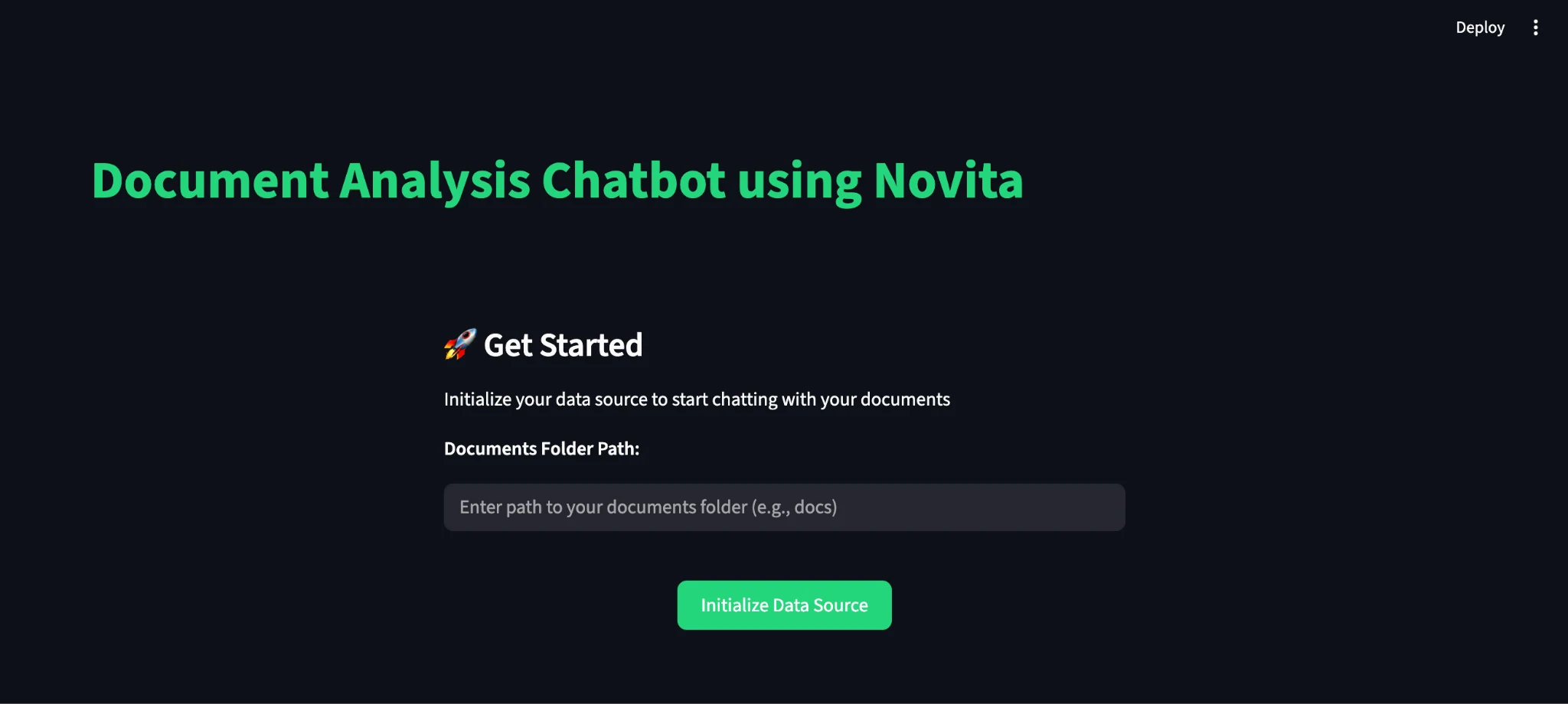
        st.write("Initialize your data source to start chatting with your documents")

        # SQL Database Configuration (hidden)
        db_user = "root"
        db_password = "1234cisco"
        db_host = "localhost"
        db_name = "retail_sales_db"
        # Documents Folder Configuration
        st.write("**Documents Folder Path:**")
        documents_folder = st.text_input(
            "Documents Folder Path",
            placeholder="Enter path to your documents folder (e.g., docs)",
            label_visibility="collapsed"
        )

        st.markdown("<br>", unsafe_allow_html=True)

        # Center the button
        button_col1, button_col2, button_col3 = st.columns([1, 1, 1])
        with button_col2:
            if st.button("Initialize Data Source", use_container_width=True):
                try:
                    # Validate and resolve documents folder path
                    if not documents_folder:
                        st.error("Please provide a documents folder path")
                    else:
                        # Convert to absolute path
                        abs_documents_folder = os.path.abspath(documents_folder)
                        if not os.path.exists(abs_documents_folder):
                            st.error(f"Documents folder not found: {abs_documents_folder}")
                        elif not os.path.isdir(abs_documents_folder):
                            st.error(f"Path is not a directory: {abs_documents_folder}")
                        else:
                            # Initialize query processor with a dummy SQL engine
                             # Create SQL engine
                            connection_string = f"mysql+pymysql://{db_user}:{db_password}@{db_host}/{db_name}"
                            sql_engine = create_engine(connection_string)
                            st.session_state.processor = QueryProcessor(abs_documents_folder, sql_engine)
                            st.success("Data source initialized successfully!")
                            st.rerun()
                except Exception as e:
                    st.error(f"Error initializing data source: {str(e)}")
else:
    # Show data source status in sidebar
    with st.sidebar:
        st.header("📊 Data Source")
        st.success("✅ Data source initialized")
        if st.button("Reset Data Source"):
            st.session_state.processor = None
            st.session_state.messages = []
            st.rerun()
    # Main chat interface
    st.header("Chat Interface")
    # Display chat messages
    for message in st.session_state.messages:
        with st.chat_message(message["role"]):
            st.write(message["content"])
    # Chat input
    if prompt := st.chat_input("Ask a question about your documents"):
        # Add user message to chat history
        st.session_state.messages.append({"role": "user", "content": prompt})
        with st.chat_message("user"):
            st.write(prompt)

        # Process query
        try:
            response = st.session_state.processor.process_query(prompt)

            # Add assistant response to chat history
            st.session_state.messages.append({"role": "assistant", "content": response})
            with st.chat_message("assistant"):
                st.write(response)
        except Exception as e:
            st.error(f"Error processing query: {str(e)}")
    # Add a clear chat button only if there are messages
    if st.session_state.messages:
        if st.button("Clear Chat"):
            st.session_state.messages = []
            st.rerun()
The initialization process includes robust error handling and path validation to prevent common user errors. The sidebar provides clear status information, and the chat interface follows familiar patterns that users expect from modern AI assistants. The system maintains conversation history, allowing users to build on previous questions and create a natural analytical workflow. The clear chat functionality lets users start fresh when needed.
Running the Analytics System
Now that we’ve built the RAG-powered sales analytics system, let’s put it to the test and see how well it performs on real-world business queries.
First, create a data_generator.py file and copy the code from the Python script here to generate sample data we’ll give to the system, and run the script with the command:
| python data_generator.py |
This will create a sample_documents folder with:
- large_sales_dataset.csv - 10,000 sales records
- business_strategy_2024.txt - Strategic business document
- sales_meeting_notes.txt - Meeting notes and action items
Then start the Streamlit application:
| streamlit run main.py |
The application will open in your browser at http://localhost:8501.
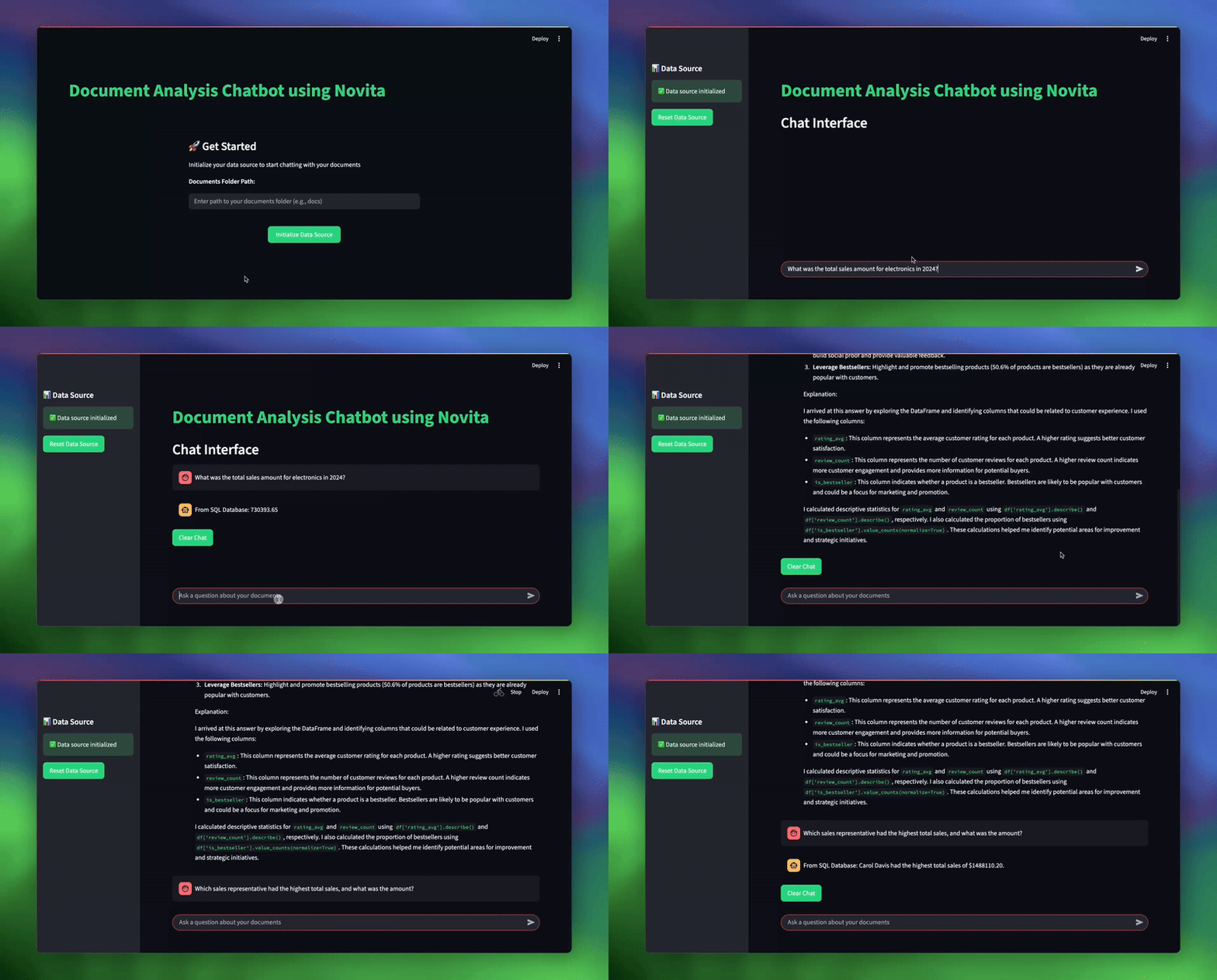
Once initialized, you can test the system by entering your documents path as sample_documents and ask various business questions:
| # Sample queries to test the system topic_1 = “What was the total sales amount for electronics in 2024?“ topic_2 = “What are our key strategic initiatives for customer experience?“ topic_3 = “Which sales representative had the highest total sales, and what was the amount?” |
Conclusion
Throughout this tutorial, we’ve built a RAG-powered analytics system that demonstrates how modern AI can transform business intelligence workflows. By combining multiple data processing approaches under a single intelligent interface, we’ve created a tool that can handle the full spectrum of business questions that analysts face daily. The system’s key strengths include:
- Intelligent Query Routing that automatically determines the best data source for each question
- Multi-format support to handle SQL databases, CSV files, Excel spreadsheets, and text documents
- Robust Error Handling to provide fallback mechanisms and clear error messages.
- Chat-based interaction that requires no technical expertise.
- Built-in verification and validation to ensure reliable results
You can extend this application to incorporate additional sources, more advanced analysis techniques, and custom business logic. Now that you have this knowledge, go ahead and try building your own agents with Novita AI or integrating it into your existing projects.
Novita AI is the All-in-one cloud platform that empowers your AI ambitions. Integrated APIs, serverless, GPU Instance — the cost-effective tools you need. Eliminate infrastructure, start free, and make your AI vision a reality.