Connecting Novita AI to TypingMind takes one API key. In TypingMind, open Models in the left sidebar, switch to the API keys tab, and paste a Novita API key; then open the Novita provider and enable the models you want. Novita AI’s LLM API is OpenAI-compatible, so the same key also works when you add a newer model by hand through the custom model dialog. This guide covers the built-in setup, a repeatable prompt workflow across several models, when a custom model is actually needed, and how TypingMind’s one-time license differs from metered Novita usage.
What TypingMind and Novita AI each provide
TypingMind is the workspace: a chat interface, saved conversations, a prompt library, agents, and side-by-side model comparison. Novita AI is the model source: an OpenAI-compatible API serving chat completions, embeddings, and a catalog of models. Your Novita key links the two, and the accounts stay separate.
| Layer | What it provides | What you manage there |
|---|---|---|
| TypingMind | Chat interface, saved conversations, prompt library, agents, multi-model chats | Your TypingMind license and where conversations are stored |
| Novita AI | OpenAI-compatible model API: chat completions, embeddings, model catalog | Your API key, account balance, and model access |
| Together | Select a model per task and reuse the same prompts in one workspace | Which models are enabled and how much API usage you generate |
The combination saves you building a chat front-end and lets you choose a model per task, with usage billed per token rather than by subscription.
Connect Novita AI through the built-in provider
You need a Novita AI account with an API key and a TypingMind license. The built-in Novita provider already lists models, so this path requires no endpoint or model ID entry.
- Create a Novita API key. Sign in to Novita AI, open Key Management, create a key, and copy it. Confirm your account has balance and access to the models you plan to use.
- Add the key in TypingMind. Open Models in the left sidebar, switch to the API keys tab, and paste the key into the Novita field.
- Enable models. Switch back to the Models tab, select Novita, and enable the models you want to chat with.
- Send a test message. Start a new chat, select an enabled Novita model, and send a question whose answer you know. A normal reply confirms the key, balance, and model access are working together.
The three screens below follow those steps in order.
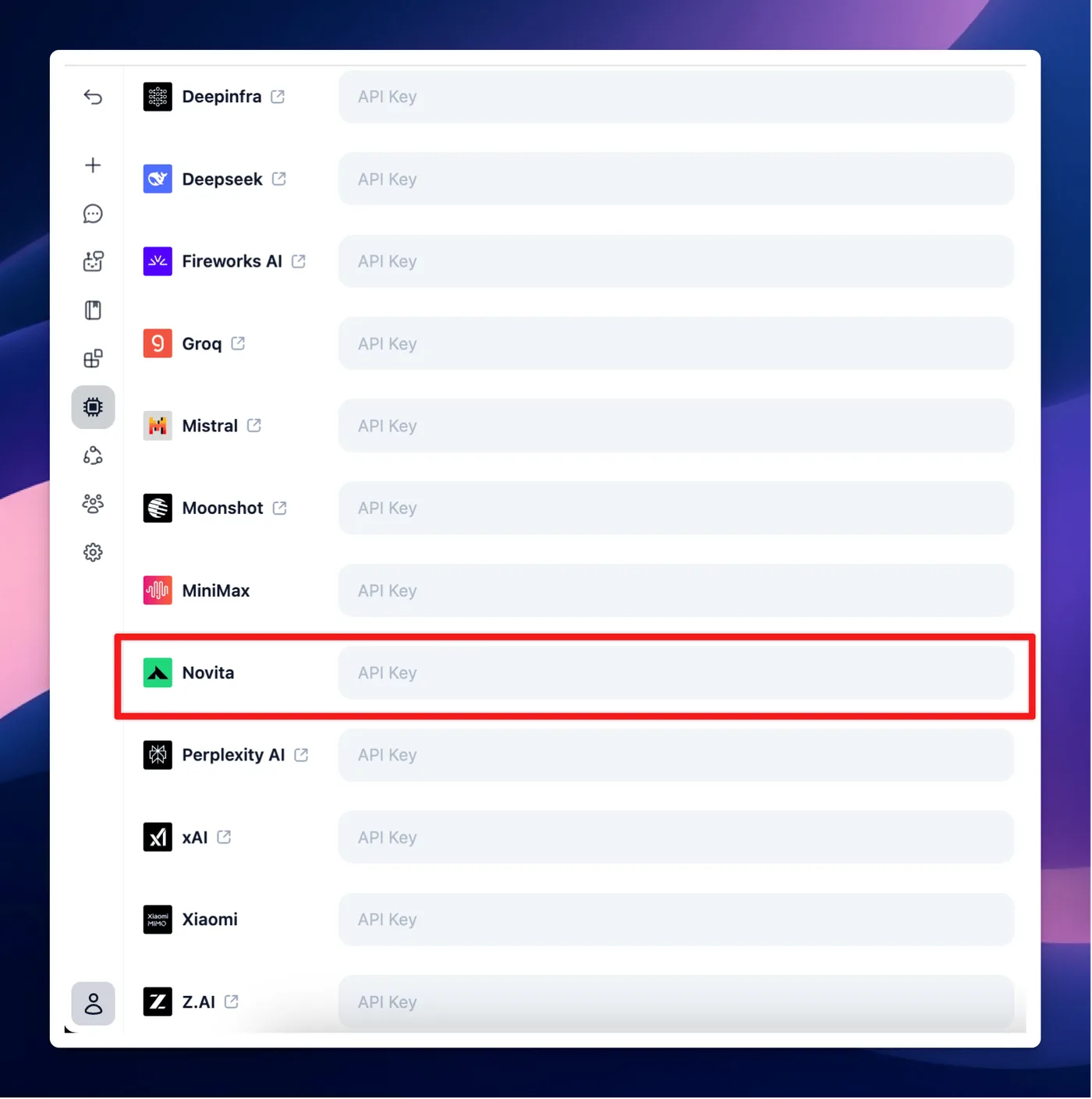
The API keys tab is where the Novita key is pasted; the other providers stay empty unless you use them.
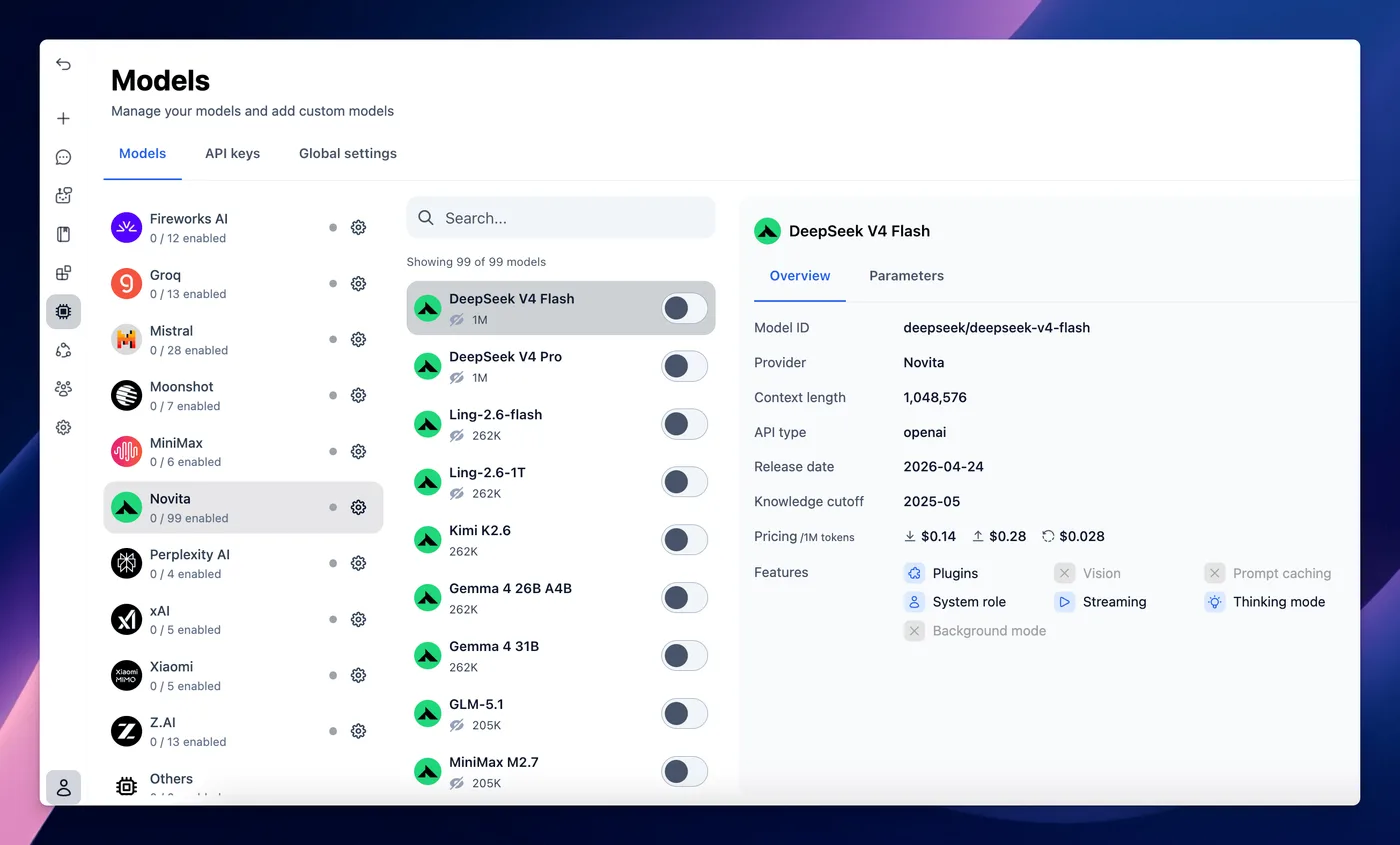
Selecting Novita lists its models and shows each one’s ID, context length, and provider before you enable it.
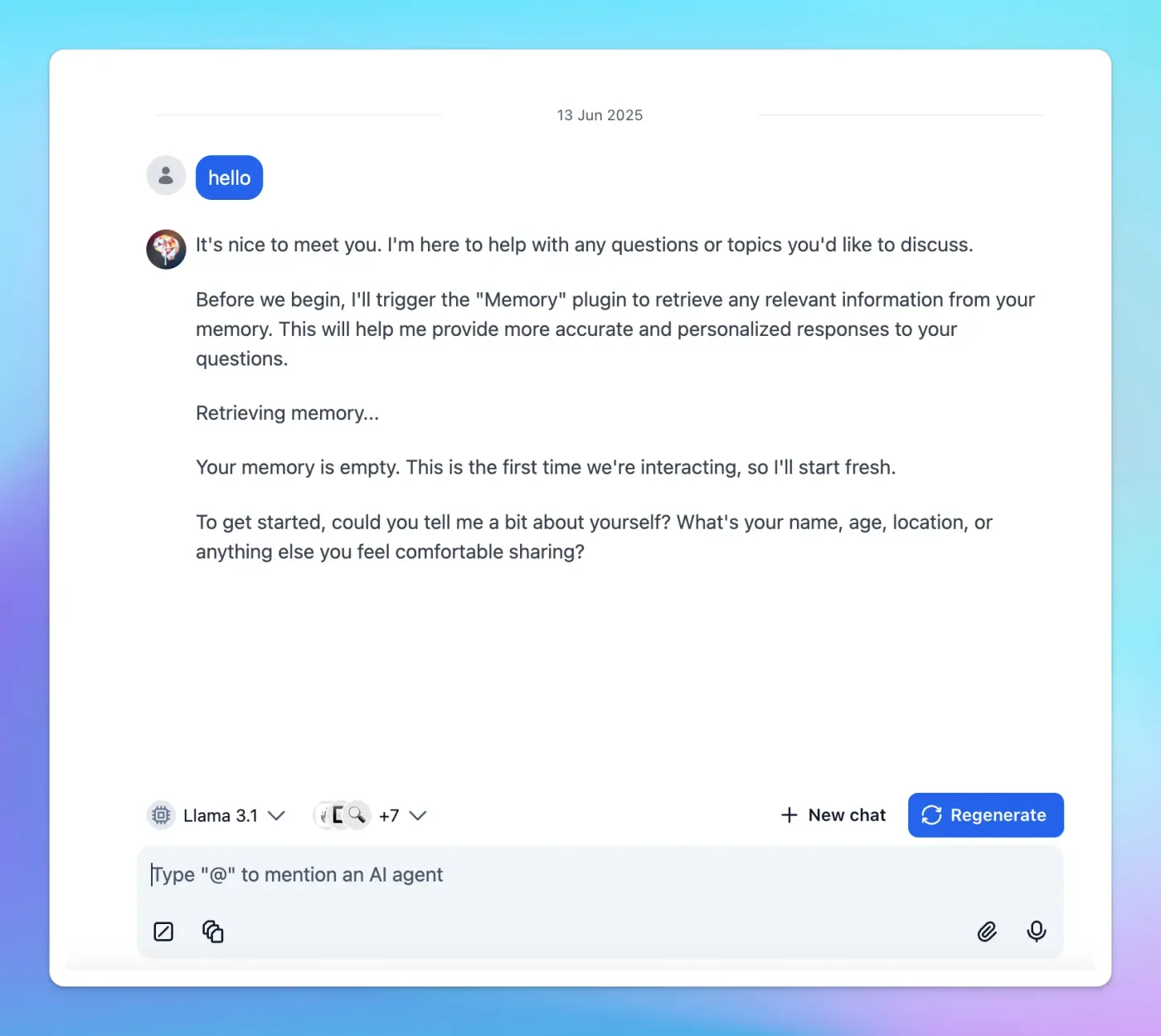
A normal chat reply is the confirmation that the key and the enabled model are working together.
All three screenshots are from TypingMind’s official Novita AI documentation, checked October 15, 2026.
TypingMind’s screen labels can shift between releases, so use the Novita AI page in TypingMind’s docs as the current source if a menu name differs.
A repeatable workflow: product notes into FAQs
Keeping several models in one workspace is useful when you build one workflow and run it across them. The example below is a workflow to set up and run yourself; it is not a captured run, and the outputs depend on which models you enable and on your own account.
Suppose you have this sample note:
Example product notes. Acme Notes stores everything locally. It supports Markdown and plain text. The free tier is capped at 50 notes; the paid tier removes the cap, and pricing is not announced.
Save this prompt in the TypingMind prompt library so you can reuse it:
Based only on the product notes below, write five customer FAQs. Keep each answer under 80 words. If the notes do not contain an answer, mark it as ‘Needs confirmation’.
Run the prompt with one enabled Novita model, then switch to a second enabled model — for a long note set, a large-context model is a reasonable pick — and run it again. Judge each output on three things:
- Factual accuracy. Does every answer stay inside the notes, or does a model add a price the notes never state?
- Structure. Does each answer stay under 80 words and answer one question?
- Unknowns. Because pricing is unannounced, the honest output is “Needs confirmation” for that question; a model that invents a price fails, however fluent it reads.
The prompt is worth keeping because it tests whether a model follows a fallback instruction instead of filling gaps.
When you need a custom model
The built-in Novita provider lists current models, so a custom model is optional rather than part of the standard setup. Add one when a model you want is missing from the list, usually right after a release TypingMind has not picked up. Open the model settings, click Add Custom Models, and fill in these fields:
| Field | What to enter |
|---|---|
| Model name | A display label you choose, for example DeepSeek V4.1 Flash |
| Endpoint | https://api.novita.ai/openai/v1/chat/completions |
| Model ID | The exact ID from the model page, for example deepseek/deepseek-v4.1-flash |
| Context length | The window listed on the model page (DeepSeek V4.1 Flash lists 1M tokens) |
| Custom header | Authorization with the value Bearer <your Novita API key> |
Click Test, then Add Model.
Two URLs matter here, and they are not interchangeable. The full Chat Completions URL — what the Endpoint field expects — is https://api.novita.ai/openai/v1/chat/completions in Novita’s current LLM API guide. The SDK base URL for OpenAI-compatible clients is https://api.novita.ai/openai, without the /v1/chat/completions path. Paste the full path into a base-URL field and you call a path that does not exist.
TypingMind’s own Novita page still shows an older custom-model example, https://api.novita.ai/v3/openai/chat/completions. Do not assume the difference means the old path is dead: a reachability check on October 15, 2026 returned an authentication error (HTTP 403, invalid API key) from both paths rather than a 404, so the host still routes them; proving a successful call needs your own key. Before saving a custom endpoint, confirm the current URL in the create chat completion reference, and take the model ID and context value from the model page instead of copying an old example. Model IDs move: Novita’s recommended-models list now points the older deepseek/deepseek-r1-0528 to deepseek/deepseek-v4-pro.
Costs: TypingMind license vs Novita usage
The two bills are separate, and mixing them up is the most common expectation gap.
- TypingMind is a one-time purchase across three tiers — Standard, Extended, and Premium — and the license unlocks the app and its features. It does not include Novita model usage.
- Novita AI bills metered API usage per token on your Novita account, independent of the TypingMind license.
Your total has two parts: a one-time TypingMind license plus pay-as-you-go Novita usage. The license is not a credit balance for the API, and an exhausted Novita balance stops calls even with a valid license. Current prices live on the vendors’ own pages — the TypingMind plans page for the license and the Novita AI model catalog for per-model token rates. Keep personal plans and the Teams offering separate when you compare.
Troubleshooting common connection problems
- Key added but calls fail. Confirm the key is in the Novita field, the account has balance, and a Novita model is enabled.
- A model is missing from the list. The built-in list can lag a release; add the model as a custom model with the current endpoint and model ID.
- A custom model test fails. Re-check the full endpoint URL, the model ID spelling, and the
Bearer <key>header. A base URL in the Endpoint field is the usual culprit. - Rate limits or quota errors. Provider-side limits depend on your account tier. Send smaller requests or slow down instead of retrying in a tight loop.
- Files, images, or tools do not work. Those capabilities depend on the model and its configuration, not the endpoint; a model can answer text fine while ignoring tools.
Conclusion
One Novita API key is enough to bring a catalog of models into TypingMind’s workspace. The built-in provider covers normal use — add the key, enable models, start chatting — while the custom model dialog covers the gaps when a new model has not reached the list yet. Keep two facts straight when you connect: the full Chat Completions URL differs from the SDK base URL, and the TypingMind license is separate from metered Novita usage. Verify the endpoint and model ID at connection time rather than trusting an older example.
Connect your Novita API key in TypingMind, enable a model, and try it on a task you already do every day.
FAQ
Do I need to write code to use Novita AI in TypingMind?
No. The built-in provider and the custom model dialog are both UI steps — enter a key, endpoint, and model ID, then click a button. Code matters only if you want to call the same API directly from an application.
Why is the model I want missing from TypingMind’s Novita list?
The built-in list is maintained by TypingMind and can lag a new release. Add the model through Add Custom Models with the current model ID and endpoint, and it appears alongside the built-in models.
My Novita key is added but calls still fail — what should I check?
Confirm the key is in the right provider field, the account has balance, and a Novita model is enabled. For a custom model, re-check the full endpoint URL and model ID. A valid key against a wrong path still fails.
Do my messages leave my device when I use TypingMind with Novita AI?
For messages you send to a Novita model, yes. Local chat storage does not mean requests stay on your machine: TypingMind forwards your prompt to the Novita API to generate a reply, so treat what you send as leaving your device.
Does the TypingMind license include Novita API credits?
No. The TypingMind license is a one-time purchase for the app. Novita usage is billed separately, per token, on your Novita account, so a valid license does not cover model calls.
Does file, image, or tool support work through this setup?
It depends on the model and its configuration, not the connection. Novita serves language models with varying feature support, so confirm a model’s capabilities on its model page before relying on file, image, or tool use.
Sources
- TypingMind: Novita AI guide — built-in setup steps and custom model fields; checked October 15, 2026.
- Novita AI: LLM API guide — OpenAI-compatible base URL and full Chat Completions URL; checked October 15, 2026.
- Novita AI: create chat completion reference — request headers and fields; checked October 15, 2026.
- Novita AI: recommended models — current model IDs and context windows; checked October 15, 2026.
- TypingMind: Plans & Pricing — license tiers; checked October 15, 2026.